This is the full developer documentation for Fungi
# Open Agents, and the Apps they build and use.
> Shiitake is an Agent for your terminal that runs on your own Claude or ChatGPT subscription. Oyster is a platform of small Apps that people and agents use, and that anyone can build. Fungi Hub hosts both for your team.
# Choose your door
> Fungi has three ways in. Pick the one that matches what you want to do, and try it in a few minutes.
Fungi is open-source AI Agents and the Apps they build and use. There are three ways in, plus one for builders and one for agents. Each one works on its own.
| You want | Start here | First few minutes |
| ----------------------------------------------- | ----------------------------- | --------------------------------------------------------- |
| A coding Agent in your terminal | [Shiitake](#shiitake) | Install with npm, run `fungi` in a project |
| Your own platform of Apps for people and agents | [Oyster](#oyster) | Try Oyster locally, or run it on your Cloudflare account. |
| All of it hosted for your team | [Fungi Hub](#fungi-hub) | Sign in, make a Team, give an Agent a job |
| To build Apps other people use | [Build Apps](#build-apps) | Make a one-page App and install it on Oyster |
| You are an AI agent | [For AI agents](/for-agents/) | Read the agent quick start |
Not sure? [How Fungi fits together](/ecosystem/) shows all the pieces in one picture.
## Shiitake
[Section titled “Shiitake”](#shiitake)
Shiitake is an Agent that works in your project folder, in the terminal. If you use Codex or Claude Code, it will feel familiar. It runs on your own Claude or ChatGPT subscription, a provider key, or Fungi hosted models. Your files, tools and saved conversations stay on your machine.
**Try it (2 minutes).** You need Node 22.13 or newer on Linux or macOS.
TERMINAL
```sh
npm i -g @fungi.computer/spore
cd your-project
fungi
```
Setup asks which model to use. Choose your Claude or ChatGPT subscription and sign in in the browser. Then type a task and press Enter.
**Next:** [Install Shiitake](/install/) · [Use the terminal](/guides/use-the-terminal/) · [Use your editor](/guides/use-fungi-in-your-editor/) · [Write an extension](/guides/write-an-extension/)
## Oyster
[Section titled “Oyster”](#oyster)
Oyster is an open platform of small Apps that you run on your own Cloudflare account. People open the Apps in a browser. Agents call the same Apps over one MCP endpoint. Each App is built from a git commit, and anyone can build one.
Oyster is not a tool for deploying your own website. It is a home for Apps: a git platform, agent conversations, a terminal, an editor, workflows and image generation come with it, and you add more.
**Live Oyster.** The live instance at [oyster.shiit.app](https://oyster.shiit.app/) requires an Oyster key. To try Oyster without a Cloudflare account, [run it locally](/guides/run-your-own-oyster/#run-it-on-your-laptop).
**Run your own (5 minutes, on your laptop).** You need Node 24, pnpm 11 and Git. You do not need Docker or a Cloudflare account until you deploy. Follow [Run your own Oyster](/guides/run-your-own-oyster/#run-it-on-your-laptop).
**Next:** [Is Oyster for you?](/is-oyster-for-you/) · [Run your own Oyster](/guides/run-your-own-oyster/) · [Oyster docs](https://docs.fungi.computer/oyster/)
## Fungi Hub
[Section titled “Fungi Hub”](#fungi-hub)
Fungi Hub is the hosted version at [fungi.computer](https://fungi.computer/). A Team shares Agents, Computers, Apps and one bill. Each Agent can have its own Computer: a Linux workspace where it keeps files and runs commands.
**Try it (5 minutes).** Sign in, create a Team and add credit or start Pro. Open Grove, create an Agent with a new Computer, and ask it to write `notes/hello.md`. Open Inkcap on the same Computer and the file is there. The [Quickstart](/quickstart/) walks through each step.
Hosted work needs Team credit or Pro. There is no free hosted tier. See [Billing and credit](/account/billing/).
**Next:** [Quickstart](/quickstart/) · [Use Apps](/guides/use-apps/) · [Find, install and sell Apps](/guides/list-and-sell-apps/)
## Build Apps
[Section titled “Build Apps”](#build-apps)
An App is a small web App with an optional typed backend and its own database. You build it from a git repository. People use it in a browser and agents call its methods. Share your git repo so another Oyster owner can pack and install it.
**Try it (5 minutes).** On a local Oyster, make a one-page App, commit it, pack it and install it. [Build Apps for everyone](/build/#your-first-app) has the steps.
**Next:** [Build Apps for everyone](/build/)
## For AI agents
[Section titled “For AI agents”](#for-ai-agents)
If you are an agent, start at [For AI agents](/for-agents/).
# Is Oyster for you?
> Agents can work on Computers and build Apps on Oyster. See when that is useful, and when Cloudflare Workers Builds is the simpler choice.
## Start with the Computer
[Section titled “Start with the Computer”](#start-with-the-computer)
You want an agent to work on files, run commands and make Apps people can open. On a deployed Oyster, an owner can attach a Computer to an agent. The agent can then use the files and execution it has been granted. The starter setup also uses one Computer to build Apps from git commits. **Attaching a Computer does not create a private Computer for every agent.**
Oyster puts a desktop around that work. Grove holds agent conversations, Bonsai holds git repositories, Shed opens a terminal and Inkcap edits files. People use installed Apps in a browser. Agents call App methods through one `/mcp` endpoint, with their own keys. The copied Oyster Worker includes owner-only `POST /api/keys` for issuing those keys.
**Oyster might fit** if you want to run that App and agent platform on your Cloudflare account, fork the starter Apps or build Apps your agents can call. The `oyster install-apps` command builds and installs seven starter Apps. It builds **two at a time by default** on the setup’s Computer.
**It might not fit** if your whole job is to build and deploy one Worker when you push to Git. You don’t need an App desktop or an agent’s Computer for that.
## Oyster or Workers Builds?
[Section titled “Oyster or Workers Builds?”](#oyster-or-workers-builds)
| Your job | Oyster 0.5.0 | Cloudflare Workers Builds |
| ------------------------- | ----------------------------------------------------------------------------------------------------------------------- | ---------------------------------------------------------------------------------------------------------------------------------------- |
| Ship code from Git | Builds App Releases from git commits on your Oyster’s Computer, then installs them into its App host. | Connects a Worker to Artifacts, GitHub or GitLab. A push triggers a build, then deployment or a branch Preview. |
| Give an agent a workspace | An owner can attach a Computer to an agent. Agents with access can use its files and commands alongside installed Apps. | Builds is a Worker build and deployment workflow, not a ready-made agent workspace. You can build your own agent software on Cloudflare. |
| Open the result | People open Apps in Oyster’s desktop; agents call them over `/mcp` with a key. | Opens your deployed Worker. Non-production branches can produce Preview URLs. |
[Workers Builds](https://developers.cloudflare.com/workers/ci-cd/builds/) is Cloudflare’s CI/CD path for a Worker. Its [build and deploy commands](https://developers.cloudflare.com/workers/ci-cd/builds/configuration/) are configurable. Oyster is a platform you operate **on** Cloudflare; it does not replace Cloudflare’s CI/CD service. You can use both.
## Try it before you decide
[Section titled “Try it before you decide”](#try-it-before-you-decide)
The [local Oyster quickstart](/guides/run-your-own-oyster/#run-it-on-your-laptop) runs one small App under `wrangler dev`. You need Node 24, pnpm 11, Git, curl and openssl, but not Docker or a Cloudflare account for that local trial. **That trial has no Computer, git storage or Workers AI.** To build starter Apps on a Computer, follow the [deployment guide](/guides/run-your-own-oyster/#deploy-it). That needs Cloudflare Workers Paid and Docker.
The [live Oyster](https://oyster.shiit.app/) **requires an Oyster key**. It is not an anonymous demo.
**Roadmap, not available today:** a public no-key Oyster demo. The own-server guide is still a draft; running Oyster on your own server does not remove the Cloudflare Artifacts requirement for git. For now, start with the local trial or deploy Oyster on your Cloudflare account.
# For AI agents
> A concise, version-grounded guide to Fungi and its CLI.
Fungi is a platform for AI Agents with their own computers. Agents can work in local project folders with Shiitake, or in a Team through Fungi’s hosted services. The Spore npm package installs the `fungi` command-line client.
## Install and start
[Section titled “Install and start”](#install-and-start)
TERMINAL
```sh
npm i -g @fungi.computer/spore
cd your-project
fungi
```
Choose a model during setup. To use Fungi-hosted models, sign in and select a funded Team; using your own provider key or subscription uses that provider’s billing.
## Main CLI commands
[Section titled “Main CLI commands”](#main-cli-commands)
* `fungi` opens the interactive conversation UI for this folder. Use `fungi new` to start a new conversation.
* `fungi login --provider fungi` signs in and selects the Team for hosted models.
* `fungi doctor` reports platform requirements, saved Fungi sign-in, model configuration, HTTP reachability, and installed version. It does not make an inference request or verify Team credit.
* `fungi run "your prompt"` runs one prompt. Configure the model in a terminal before using it for automation.
* `fungi resume --last` reopens the latest Session for this project.
* `fungi stop` stops the shared local service without deleting saved Sessions.
* `fungi --version` prints the installed version.
* Inside a Session, `/model` selects a model and `/thinking` selects a supported thinking level.
See the [CLI reference](/reference/cli/) for the full command set and [Install Shiitake](/install/) for platform requirements.
## Permission modes
[Section titled “Permission modes”](#permission-modes)
Shiitake offers three command permission modes:
* **Full access** runs commands as you, without the sandbox. It can use your files, network, and credentials on Linux and macOS. Select it with `--yolo` or `--full-access`.
* **Workspace** is sandboxed and can write the Agent’s folder and temporary files. On Linux it can also use the network and reach `ssh-agent`; existing host-selected package caches can be writable. On macOS, Workspace does not grant network access, writable package caches, or `ssh-agent` access.
* **Read-only** is sandboxed and can write only temporary files. It cannot write the project or package caches, use the command network, or reach `ssh-agent`.
Use `--workspace` or `--read-only` to select a sandboxed mode. If the required sandbox is unavailable, Shiitake refuses the mode rather than silently running with Full access. These are command-sandbox permissions; Web, MCP, and delegation tools are outside this command sandbox. See [What’s new in Fungi 0.4.0](/changelog/#agent-permissions) and [Security and isolation](/guides/security-and-isolation/).
## Documentation for agents
[Section titled “Documentation for agents”](#documentation-for-agents)
* [Root `llms.txt`](/llms.txt) links to the [complete docs](/llms-full.txt) and [compact docs](/llms-small.txt).
* [Choose your door](/start/) and [Run your own Oyster](/guides/run-your-own-oyster/) introduce the paths.
* [Oyster package `llms.txt`](https://docs.fungi.computer/oyster/llms.txt)
* [Shiitake package `llms.txt`](https://docs.fungi.computer/shiitake/llms.txt)
* [Mule package `llms.txt`](https://docs.fungi.computer/mule/llms.txt)
* [Mycelium package `llms.txt`](https://docs.fungi.computer/mycelium/llms.txt)
* [Quickstart](/quickstart/) and [Fungi architecture](/reference/architecture/) explain the hosted product and its concepts.
Spore does not have a separate documentation site. Its CLI install and setup material is in [Install Shiitake](/install/), and its commands are covered by the shared [CLI reference](/reference/cli/).
# Install Shiitake
> Install Shiitake with npm and start a local Agent Session.
Run Shiitake in your project folder using your own Claude or ChatGPT subscription, a provider key, or Fungi hosted models. Spore (`@fungi.computer/spore`) is the CLI package that installs it.
## Quick start
[Section titled “Quick start”](#quick-start)
1. Install Spore (Node 22.13 or newer):
TERMINAL
```sh
npm i -g @fungi.computer/spore
```
2. Open your project folder:
TERMINAL
```sh
cd your-project
```
3. Start Shiitake:
TERMINAL
```sh
fungi
```
Setup asks which model to use. Choose your Claude or ChatGPT subscription and sign in in the browser.
The rest of this page covers platform requirements, sign-in options and troubleshooting.
## Install
[Section titled “Install”](#install)
Shiitake needs Linux x64/arm64 with glibc 2.35+, or macOS 13.5+ on Apple Silicon or Intel. Windows and Alpine Linux (musl) are not supported.
Install with npm and Node 22.13 or newer:
TERMINAL
```sh
npm i -g @fungi.computer/spore
```
Keep npm optional dependencies enabled; they supply the native runtime. You do not need a separate Bun installation. On an unsupported machine, the Node launcher exits before loading native code and reports the platform requirements.
Run `fungi doctor` to see the detected platform and glibc version. On supported Linux and macOS, it also checks saved Fungi sign-in, Fungi model configuration and HTTP connectivity. It reports a missing login with `fungi login --provider fungi` as the next step and never displays credentials. On unsupported platforms, sign-in is left unchecked; doctor exits with the same platform requirement.
Doctor does not send a model prompt or verify Team credit. A saved login and a reachable Hub do not guarantee that inference succeeds. The version check shows the installed version; it does not check for updates.
If native dependencies are missing, reinstall with:
TERMINAL
```sh
npm install -g @fungi.computer/spore --include=optional
```
If your shell cannot find `fungi`, check that npm’s global executable directory is on your PATH and open a new terminal. Run `fungi --version` to check which installation it finds.
On Apple Silicon, use arm64 Node. An x64 Node installation under Rosetta is refused before loading the Intel runtime; switch Node architectures and reinstall the CLI with optional dependencies enabled.
## First run
[Section titled “First run”](#first-run)
Open a terminal in your project folder and run `fungi`. Setup walks you through choosing a model and starting a local Agent Session. You can connect a Fungi Team or stay local. Every step can be skipped.
`fungi login --provider fungi` opens Fungi browser sign-in and approval, then selects the Team that pays for models. With one current Team, selection is automatic. You need a funded Team to run hosted models. Use `/model` inside the conversation to choose Fungi and a hosted model such as Luna. Login alone does not change the Session’s model.
`fungi login` defaults to Fungi. To use another provider, specify `fungi login --provider ` or choose it with `/login` inside a conversation. Your own key or subscription uses that provider’s billing. Fungi models use the selected Team’s hosted billing. Local files, tools and Session storage stay on your machine in either case.
Inside a conversation, `/model` chooses a model and `/thinking` chooses a level that model supports. MCP and models share one Fungi account login, while the project’s Computer endpoint and model billing Team are separate selections. Skipping login lets you inspect setup, but does not make a model available.
## Use your editor
[Section titled “Use your editor”](#use-your-editor)
[Use Fungi in your editor (ACP)](/guides/use-fungi-in-your-editor/) to connect Zed, Neovim with Agentic.nvim or another ACP client. The editor shares your local login and saved Sessions with the terminal.
## Handy commands
[Section titled “Handy commands”](#handy-commands)
Illustrative: these commands need an installed CLI, and login may require a terminal and your provider account.
TERMINAL
```sh
fungi login --provider fungi
fungi doctor
fungi --version
```
`fungi --yes` skips prompts and saves local-only setup. Piped input never opens setup prompts. For automation use `fungi run "your prompt"` after configuring a model in a terminal. Login requiring a key or browser code needs a terminal.
## Resume and stop
[Section titled “Resume and stop”](#resume-and-stop)
Run `fungi resume` in the same project folder to choose a saved Session, or `fungi resume --last` for the latest. Closing the terminal leaves the shared local service running. `fungi stop` stops that service for all local clients without deleting saved Sessions.
## Remove Fungi
[Section titled “Remove Fungi”](#remove-fungi)
Stop the shared service with `fungi stop`, then run `npm uninstall -g @fungi.computer/spore`. Uninstalling the executable does not delete your project `.fungi/` directories or your home `.fungi/` configuration and credentials. Keep those if you want to resume work after reinstalling.
# Run your own Oyster
> Oyster is an open platform of Apps that people and agents use. Run one on your laptop, then deploy it to your Cloudflare account.
Oyster is an open platform of small Apps on your Cloudflare account. People open the Apps in a browser. Agents call the same Apps through one MCP endpoint. Every App is built from an exact git commit, and you choose which version is live.
Oyster is not a tool for deploying your own website. It is a home for Apps. It comes with seven:
If you’re deciding between an App platform and a Worker build pipeline, read [Is Oyster for you?](/is-oyster-for-you/) first.
| App | What it does |
| ------------ | ----------------------------------------------------------------------------- |
| **Tourtois** | The desktop: a launcher, windows, menus and settings. |
| **Bonsai** | Git repositories. Each agent pushes to its own fork with ordinary `git`. |
| **Grove** | Conversations with agents that call every installed App as code. |
| **Shed** | A terminal on the Computer, with its ports and processes. |
| **Inkcap** | An editor for the Computer’s files. |
| **Trellis** | Workflows: graphs of App methods, started by a push, a webhook or a schedule. |
| **Prints** | Images and video with Workers AI. |
Each one is also a template. Your agents can fork it and rebuild it on the same Computer. You can [build your own](/build/) too.
## Live Oyster
[Section titled “Live Oyster”](#live-oyster)
The live instance at [oyster.shiit.app](https://oyster.shiit.app/) requires an Oyster key. To try Oyster without a Cloudflare account, [run it locally](/guides/run-your-own-oyster/#run-it-on-your-laptop).
## Run it on your laptop
[Section titled “Run it on your laptop”](#run-it-on-your-laptop)
This takes about five minutes. You need Node 24 or newer, pnpm 11 or newer, Git, curl and openssl. You do not need Docker or a Cloudflare account for this part. On your laptop there is no Computer, git storage or Workers AI, so you install a one-page App rather than the seven starter Apps.
The [agent quick start](https://docs.fungi.computer/oyster/agent-quickstart/) has every command with its expected output. Follow steps 1 to 5:
1. Check Node, pnpm and Git.
2. Create a project and install `@fungi.computer/oyster`.
3. Start Oyster with `wrangler dev` and check it answers.
4. Make a one-page App, commit it, and install it as `hello`.
5. Connect an MCP client and list its tools.
Prefer to let your coding agent do it? Paste this:
TEXT
```text
Set up Oyster for me. Install it from npm as @fungi.computer/oyster and follow
https://docs.fungi.computer/oyster/agent-quickstart/ step by step. Run each
command exactly as written, compare its output with the expected output, and
use the "If it fails" notes before improvising. Stop and ask me before step 7
(deploy).
```
## Deploy it
[Section titled “Deploy it”](#deploy-it)
Deploying puts Oyster on your Cloudflare account, with a Computer that builds Apps and runs their terminals. You need:
* a Cloudflare account on Workers Paid, with Containers, Artifacts, Workers AI, Workflows and Browser Rendering enabled;
* Docker, which Wrangler uses to build the Computer’s container image;
* Node 24, pnpm 11 or newer and Git.
Follow the [Oyster quick start](https://docs.fungi.computer/oyster/quickstart/) to deploy the Worker and configure `OYSTER_URL` and `OYSTER_OWNER_KEY`. Then install the seven starter Apps:
TERMINAL
```sh
npx oyster install-apps
```
The first install takes about 15 to 20 minutes. Most of that is the App builds on your Computer. Open `/login` on your Oyster, sign in with your owner key, and you land on the Tourtois desktop.
## Connect your agent
[Section titled “Connect your agent”](#connect-your-agent)
Give each agent its own key. A key signs in to `git` and to `/mcp`, so every push and call is attributed to that agent. Any MCP client can then call every installed App. For Claude Code:
TERMINAL
```sh
claude mcp add --transport http oyster "$OYSTER_URL/mcp" \
--header "Authorization: Bearer "
```
Each App’s methods appear as `env.` in one `execute` tool, for example `env.BONSAI.repos.list({})`. Writes need your approval.
A key made with `apps.use` on all Apps can read and write every App on that Oyster, including Apps installed later. Anyone holding it can act as you in those Apps. Revoking it stops it at once.
## Where next
[Section titled “Where next”](#where-next)
* [Build Apps for everyone](/build/)
* [Oyster docs](https://docs.fungi.computer/oyster/), including the host, Apps, capabilities, MCP and the shell
* [Fungi Hub](/quickstart/), if you’d rather not run it yourself
# This page wandered off.
> The link may be old. Search with the box at the top, or start again.
# Billing and credit
> Paid plans, included credit, prepaid credit and model keys.
Each Team has its own credit balance and bill. There is no free hosted usage: Fungi-funded work needs credit from an invite code, a purchase or Pro. The Team owner manages payment from **Your Teams** → **Billing**. Other members can see the Team’s billing status but cannot buy credit or change its plan.
## Add credit or start Pro
[Section titled “Add credit or start Pro”](#add-credit-or-start-pro)
On **Billing**, the owner can enter an amount of **$5 or more** under **Add USD credit** and choose **Continue to Stripe**. Purchased credit does not expire. Alternatively, choose **Upgrade to Pro** to pay **$8 per member seat per month**. Each full paid seat-month includes **$8 of usage credit**. Seats follow Team membership; added seats become active after payment. Removing a seat ends it immediately without a refund. The owner can manage the saved payment method, auto-refill and subscription from Billing. Cancellation takes effect at the end of the paid period.
Returning from Stripe is not itself payment confirmation. Billing shows when Checkout is pending, when payment is confirmed but credit or seats are still syncing, and when fulfillment is complete. Wait for **Credit purchase confirmed** or **Subscription confirmed**, then check **Available now**. If Checkout status cannot be checked, use **Retry Checkout status**; do not assume the Team has credit yet.
## How usage spends credit
[Section titled “How usage spends credit”](#how-usage-spends-credit)
Fungi-funded model, media, Computer and other metered usage costs the provider price plus **15%**. Usage spends included Pro credit first, then purchased credit. Unused included credit expires at the end of its paid period; purchased credit does not. **Available now** accounts for credit held by unfinished work. Billing shows balances and transaction history for the Team.
A Team with available credit or an active Pro plan can create Agents and Computers without a count cap, but execution still needs enough available credit for metered work. If creation says **Add credit to this Team in Billing**, check the Team’s balance or plan there. Other [practical limits](/account/limits/), including concurrent Computer work, still apply.
## Your own model key
[Section titled “Your own model key”](#your-own-model-key)
With [your own model key](/models/your-own-key/), model requests go to that provider and do not spend Team credit; your provider may bill you separately. This does not make hosted Computer time or other Fungi-metered work free, and a key alone does not fund creation of a hosted Agent and Computer. Local CLI runs using your own subscription or key are separate from Team billing.
The Team’s Billing page shows the current prices and available options for that Team. A credit-bearing account invite can add starting credit; it is different from a [Team membership invitation](/account/teams/).
# Limits
> Team, Computer and image limits you may meet while working.
## Teams and members
[Section titled “Teams and members”](#teams-and-members)
* You can own up to **10 Teams**. If Team creation reaches this limit, use one you already own. A transfer also counts toward the recipient’s owned Teams.
* A pay-as-you-go Team supports **one member**. Pro supports up to **25 members** through self-service seats. The owner changes the plan in [Billing](/account/billing/) before inviting beyond the current member limit.
* A Team with available credit or active Pro can create Agents and Computers without a **count** cap. This is not unlimited simultaneous execution: at most **two hosted Computers per Team** can be running at once. If capacity is full, wait for one to stop or sleep, then retry.
* Hosted work needs funding. A Team without available credit cannot run Fungi-metered work merely because it owns a model key. See [Billing and credit](/account/billing/) and [Add your own model key](/models/your-own-key/).
## Computer work
[Section titled “Computer work”](#computer-work)
* A single command can run for up to **two minutes**. Break longer work into smaller commands rather than retrying the same long command unchanged.
* A single file read is limited to **128 KiB**. Read a smaller file or section when a read is refused.
* One Computer can expose up to **64 ports**. Shed can open a preview for an exposed port. In Shed’s **Exposed ports**, choose **Stop** for an unused port before exposing another.
## Images
[Section titled “Images”](#images)
Each image model declares whether it accepts reference images, and how many and how large. Prints shows the reference-image control only for models that accept them. If an image is rejected, check that model’s limits in Prints and try a supported input.
The models and billing options shown in your Team are the available choices for that Team; do not rely on a fixed model list.
# Privacy and support
> Where to get help and what happens to your Fungi account data.
Fungi stores account, Team and product data to provide the service. Computer files live with the Agent’s Computer. Billing records and model-key settings belong to the Team. Model keys you add are stored encrypted and are not shown again.
When you use Fungi’s hosted models, prompts pass through Cloudflare AI Gateway to the selected model provider to generate a reply. Image-generation prompts are sent to Workers AI. If you add your own model provider key, the selected provider receives your requests and may have its own privacy and billing terms.
To change your account email, delete your account or export your data, use the contact details in our maintained [Privacy Policy](https://fungi.computer/privacy). Review the [Terms of Service](https://fungi.computer/terms) and [Subprocessors](https://fungi.computer/subprocessors) pages for legal and service details.
## Contact
[Section titled “Contact”](#contact)
* Account-data requests: [Privacy Policy](https://fungi.computer/privacy)
* Abuse reports:
* Security reports:
For account or Team questions, include the Team name and a short description of what happened. Never send a sign-in code, magic link, API key, session token or device private key. Signing out or revoking access does not delete your account or Team data; see [sign-out and connected logins](/account/sign-in/).
# Sign-in and your account
> Create an account, manage connected logins and sign out safely.
Open [Fungi sign-in](https://fungi.computer/). Fungi uses email codes, magic links and, when shown on the form, GitHub. There is no account password.
## Create an account or sign in
[Section titled “Create an account or sign in”](#create-an-account-or-sign-in)
1. Choose **Create account** if you are new, or **Sign in** if you already have an account. For a new account, enter your name, accept the Terms and enter the invite code you received if one is required.
2. Enter your email and choose **Send code**. Enter the code from that inbox, then choose **Continue with code**. This verifies your email and signs you in; for a new account it also creates the account. Or choose **Use a magic link** and open the link sent to the same inbox. **Continue with GitHub** appears when GitHub sign-in is configured.
3. If Fungi still asks you to verify your email, open the separate verification link in your inbox, then choose **I’ve verified my email**. An invitation works only with the verified email address it was sent to.
Email sign-in codes and magic links expire after 15 minutes. If a message does not arrive, check the email address and spam folder, then choose **Use another email or resend**. If Fungi asks you to wait before requesting another message, wait before retrying. If email sign-in is unavailable, try again later; GitHub may be an option if its button appears. Never share a sign-in code or link.
If you previously used a Fungi password, request a code for that same email address to access your existing account.
## One sign-in for every Team
[Section titled “One sign-in for every Team”](#one-sign-in-for-every-team)
You sign in once, at fungi.computer. Opening a Team at its own address, such as `acme.fungi.computer`, carries that sign-in to the Team. Each Team keeps its own session cookie, which no other Team or App can read. Every request still checks that you are a current member of the Team.
On **Account**, you can change your display name, check email verification and manage **Signed-in devices**. **Sign out this device** ends the selected browser session. **Sign out** ends the current browser session, including its linked Team sessions; it leaves independent browser sessions and Local logins alone. **Sign out all other devices** ends your other browser sessions and revokes your OAuth logins, including Local connections. It keeps the current browser signed in. Fungi may ask you to sign in again before managing devices.
## Sign in from the local terminal
[Section titled “Sign in from the local terminal”](#sign-in-from-the-local-terminal)
Run `fungi login` to sign in through your browser; it defaults to Fungi. `fungi login --provider fungi` is equivalent. Review **Authorize Fungi access**, then choose **Allow** or **Deny**. The permissions cover your name and email, staying signed in on this device, using your Teams’ Fungi models and accessing their issue tracker repositories. Team membership and permissions still limit what the login can do.
Local uses one Fungi account login for hosted models and Team MCP connections. Choose the Team that pays for models when prompted; a single current Team is selected automatically. `fungi status` shows the saved login and selected Team. Local ACP editor clients share that login under the same OS account and home directory. To connect to a Team’s Computers, copy its MCP address from the Team’s MCP connection settings and run `fungi login --fungi-mcp `, then `fungi mcp use ` to save it for the project. The model billing Team and the project’s Computer endpoint are separate choices. See [Use the terminal](/guides/use-the-terminal/).
Other model providers have their own logins. Choose one with `fungi login --provider ` or `/login` in the TUI. **ChatGPT (your plan)** is local only; it does not connect that subscription to hosted Agents. Fungi does not meter your own subscription or BYOK model runs.
## Revoke a connected login
[Section titled “Revoke a connected login”](#revoke-a-connected-login)
Open **Account → Connected logins** on the Hub. Find the device using its label, **Connected** date and **Last used** time. **Revoke this login** ends that one login, including its ability to refresh. Other logins for the same App keep working. Local must sign in again before making new authorized requests; already-running requests and streams may finish.
Under **App-wide access**, **Revoke all logins** ends every login for the chosen App and removes its consent. Use this when you want to disconnect the App everywhere. Revocation prevents further refreshes. Local refuses new requests immediately, but an already-issued third-party JWT access token may remain valid until it expires, at most 15 minutes, even if the App had a refresh token. Third-party Apps using opaque access tokens lose access immediately.
The list shows logins with an active refresh token. A login without one is not listed, so it cannot be selected for individual revocation here. This visibility limit is separate from the third-party JWT expiry window.
These connections are separate from [GitHub repository connections](/guides/connect-github/), Team App permissions and attached local folders. Revoking an OAuth login does not detach a folder whose running backend already holds a device key.
## Sign out of Local
[Section titled “Sign out of Local”](#sign-out-of-local)
Run `fungi logout --provider fungi`, or `fungi logout --fungi-mcp ` for the saved Fungi origin. Local tries to detach its saved Computer attachments and revoke its login. It retries a failed login revocation once and always removes the local credential and device private keys, even if the Hub cannot be reached. Logging out of another model provider affects that provider’s login instead.
If revocation cannot be confirmed, Local says: “Signed out here. Couldn’t confirm with Fungi; you can revoke this login under Connected logins.” Use **Account → Connected logins → Revoke this login** to finish remotely.
If a Computer’s detach cannot be confirmed, Local names it and links its Hub Computers page. Detach it there, or press Ctrl-C in the terminal running `fungi computer attach`. That process can still serve Team commands using its in-memory device key until it is detached or stopped. Removing a saved key alone does not stop it. Ctrl-C stops serving but leaves the registered attachment offline; detach removes it.
Local saves only account, login and attachment identifiers for unfinished cleanup, never tokens or private keys. It retries after the next successful sign-in to the same account on the same Fungi service. Signing in to a different account or service discards that pending cleanup. There is no startup prompt. Use Connected logins and Computers for manual recovery if you do not sign in again. See [Attach a local folder](/guides/attach-a-local-folder/).
## Choose your personal Team
[Section titled “Choose your personal Team”](#choose-your-personal-team)
The first time you sign in, create a Team or select one you own as your personal Team. This choice is permanent. See [Teams and invitations](/account/teams/).
# Teams and invitations
> How Teams, roles and invitations work.
A Team groups people, Agents, Computers, Apps and billing. Use a separate Team when a project needs different members or its own bill. Agents get a new Computer by default; choose **No Computer** in Grove to create one without it. Team members share access to the Agent, and its Home choice is shared across its Sessions.
## Your Team’s address
[Section titled “Your Team’s address”](#your-teams-address)
Every Team has a handle, and the handle is its address: `example-team` lives at `example-team.fungi.computer` (illustrative address). Handles are 3–32 lowercase letters, digits and hyphens, and start and end with a letter or digit. Some names, such as `my`, `www`, `docs` and `staging`, are reserved for Fungi.
## Create and choose a Team
[Section titled “Create and choose a Team”](#create-and-choose-a-team)
After [signing in](/account/sign-in/), create a Team or select one you own as your personal Team. This is the Team Fungi opens first for you. The choice cannot be changed, and personal Team ownership cannot be transferred. Choose a Team you intend to keep. Create and open additional Teams from **Your Teams**. An account can own up to **10 Teams**; ownership transfers also count toward the new owner’s limit. If you reach the limit, use a Team you already own rather than retrying creation. See [Limits](/account/limits/).
## Owner and member
[Section titled “Owner and member”](#owner-and-member)
The **owner** manages members, invitations and [Billing](/account/billing/). Members can work with Team resources, but cannot manage the Team’s bill or membership. An owner can remove a member. On a shared Team, the owner can transfer ownership to an existing member; both remain members afterward.
## Invite someone
[Section titled “Invite someone”](#invite-someone)
To add a member, the owner opens **Your Teams** → **Invitations**, enters the recipient’s email and chooses **Send invitation**. The invitee opens the invitation link and [signs in](/account/sign-in/) with that same verified email address. Invitations expire after seven days. The owner can view, resend and revoke them on the **Invitations** page. If delivery is pending, retry the saved request rather than creating a second invitation. If the link has expired, ask the owner to resend it.
**A Team invitation is not an invite code for credit.** A Team invitation adds one person to an existing Team; a credit-bearing invite code is entered while creating an account and can fund its personal Team. See [Billing and credit](/account/billing/).
Members cannot leave a Team themselves; ask the owner to remove your membership.
For help with a Team, see the [Privacy and support page](/account/privacy/).
# Build Apps for everyone
> Build a small App once. People open it in a browser, agents call its methods, and you can share its git repository with other builders.
An App is a small web App with an optional typed backend. You build it from a git repository. On an Oyster or a Fungi Team, people open it in a window and agents call its methods. Share the repository so other builders can install their own copy on Oyster.
## What you build
[Section titled “What you build”](#what-you-build)
* **A page.** HTML, or React with [Caps](/guides/build-with-caps/) components. Ordinary App pages run in sandboxed frames. The chosen home shell, such as Tourtois, instead runs in the top-level host document with elevated host permissions. Choose a shell you trust.
* **An optional backend.** Typed methods with an input and output schema. Each installed App gets its own SQLite database and only the access it declares, such as git, a Computer, Workflows, Agents or media.
* **A `package.json` declaration.** `fungi.app` names the App and the access it asks for. `fungi.build` says how to build it.
[Agar](https://docs.fungi.computer/agar/) is the contract: it connects your page to its host and defines your backend methods.
## How an App lives
[Section titled “How an App lives”](#how-an-app-lives)
Here is the manual pack-and-install path:
On this manual path, building a Release does not put it in use. The owner installs it, and replacing a Release keeps the App’s data. A registered Bonsai App can instead build and install an accepted `main` push automatically within permissions the owner already approved. New permissions require owner consent. On Fungi Hub, the owner publishes a built Release of a Team App fork.
## Your first App
[Section titled “Your first App”](#your-first-app)
On a [local Oyster](/guides/run-your-own-oyster/#run-it-on-your-laptop), the smallest App is one committed HTML page and a `package.json`:
hello-app/package.json
```json
{
"name": "hello-app",
"private": true,
"fungi": { "app": { "displayName": "Hello", "capabilities": [] } }
}
```
Commit it, then pack that commit into a Release and install it with `packRelease` and `installRelease` from `@fungi.computer/oyster/pack`. Step 4 of the [agent quick start](https://docs.fungi.computer/oyster/agent-quickstart/) has the full script and the expected output. To change the App, commit again and run the script again. Oyster switches to the new Release and keeps the data.
## Add a backend
[Section titled “Add a backend”](#add-a-backend)
The [Notes example App](https://github.com/fungi-computer/oyster/tree/main/examples/notes-app) has typed methods and its own SQLite. A backend definition looks like this:
TS
```ts
import * as z from "zod";
import {
defineAppBackend,
defineAppMethod,
} from "@fungi.computer/agar/backend-definition";
export const appBackend = defineAppBackend({
methods: {
greet: defineAppMethod({
description: "Return a greeting without accessing Team resources.",
effect: "read",
requires: [],
input: z.strictObject({ name: z.string().min(1).max(64) }),
output: z.strictObject({ greeting: z.string() }),
handler: async ({ name }) => ({ greeting: `Hello, ${name}` }),
}),
},
});
```
The build reads this definition and writes the App’s API for you. Agents find the method and call it as `env..greet({ name })`.
## Share it
[Section titled “Share it”](#share-it)
| Where | How |
| ------------ | -------------------------------------------------------------------------------------------------------------------------------------------------------------------------------------------------------------------------------------------------------------------------------- |
| Any Oyster | Share your git repo. An owner clones it, packs a commit and installs the Release, or pushes it to Bonsai and chooses **Settings → Make this an App**. After that, each accepted push to `main` builds and installs the new commit, within the access the owner already approved. |
| A Fungi Team | Fork a platform App, build it on a Team Computer, preview it and accept it. See [Build an App](/guides/build-an-app/) and [Publish an App](/guides/publish-an-app/). |
| Bazaar | A Team owner lists a published Release for free or a one-time price. Other Teams find and install it. See [Find, install and sell Apps](/guides/list-and-sell-apps/). |
An App never gets more access by being installed. The owner approves each capability, and can change that later.
`oyster install-apps` installs the **seven starter Apps**, not one arbitrary repository URL. Its `--repositories` option selects a base URL for those seven repositories, not a single shared App. To install an App from a shared repo, follow the [pack and install example](https://docs.fungi.computer/oyster/agent-quickstart/) or use `oyster install ./dist --installation-id my-app` after packing it. There is no Oyster App directory yet; Bazaar is a Fungi Hub Team App.
## What you can build
[Section titled “What you can build”](#what-you-can-build)
Every App below is real and open source. Read its repository to see how it uses the contract.
| App | What it shows you how to do | Source |
| --------------- | ---------------------------------------------------------------- | -------------------------------------------------------------------------------------------------- |
| Hello | The smallest App: one committed HTML page | [Agent quick start, step 4](https://docs.fungi.computer/oyster/agent-quickstart/) |
| Notes | Typed backend methods and the App’s own SQLite | [examples/notes-app](https://github.com/fungi-computer/oyster/tree/main/examples/notes-app) |
| Folder list | A Caps page that asks permission and lists a Computer’s files | [Build an App](/guides/build-an-app/) |
| Bonsai | Git repositories, forks and merges through the git binding | [fungi-computer/bonsai](https://github.com/fungi-computer/bonsai) |
| Trellis | Workflows of App methods, started by a push, webhook or schedule | [fungi-computer/trellis](https://github.com/fungi-computer/trellis) |
| Grove | Agent conversations that call other Apps | [fungi-computer/grove](https://github.com/fungi-computer/grove) |
| Shed and Inkcap | A terminal and an editor on a Computer | [shed](https://github.com/fungi-computer/shed), [inkcap](https://github.com/fungi-computer/inkcap) |
| Prints | Images and video from a prompt | [fungi-computer/prints](https://github.com/fungi-computer/prints) |
| Tourtois | A whole desktop shell that opens every other App | [fungi-computer/tourtois](https://github.com/fungi-computer/tourtois) |
# What's new
> Human release notes for Fungi, newest release first.
Features and fixes, in plain words. Newest releases appear first. Find the packages behind Fungi on the [Open source page](/reference/packages/).
## Fungi 0.6.0 — October 28, 2026
[Section titled “Fungi 0.6.0 — October 28, 2026”](#fungi-060--october-28-2026)
### Security
[Section titled “Security”](#security)
* Oyster’s git door now enforces each key’s App grants: a clone needs App read, a push needs App use.
### Making Prints with an Agent
[Section titled “Making Prints with an Agent”](#making-prints-with-an-agent)
* An Agent can list the saved characters and styles available on its verified Computer before using them in a Print.
* Grove can show a completed tool result’s picture alongside the conversation, including when the tool also opened an image viewer.
* The Prints tool guides an Agent to make panels one at a time, with separate request IDs and one shared composition; its read-back names the result.
* If AI Gateway runs out of credits during video generation, Prints says so plainly instead of offering a retry that cannot work.
* Local distinguishes a provider usage limit from rate limiting, rather than reporting every refusal as an unavailable service.
* A finished Print in Grove offers Open in Prints; a refusal is shown instead of pretending the Print opened.
* Grove offers Open in Prints for each completed panel in an Agent’s result, skipping any panel that was refused.
* Prints uses the same keyboard-driven slash menu in its prompt. When no command matches, Tab and arrows stay with the text field.
* Chat keeps its Caps Send control in place as a run starts and stops.
* Image info puts a Print’s generation facts in labelled rows and groups its actions as equal keys in one panel.
* Prints keeps Activity in the window footer instead of the composer.
* KeycapButton remains a native button that labels its shortcut, with a status light when pressed.
### Opening Apps
[Section titled “Opening Apps”](#opening-apps)
* Opening an App window no longer repeats the installation-directory read for the same launch; a shared read is reused while it is in flight.
* Oyster verifies a Release once for concurrent requests and retries a failed verification on the next request.
* Oyster serves verified App UI bytes from an edge cache keyed by digest. A failed cache write leaves the next request a miss, not a false hit.
* Tourtois keeps its desktop layout owner while the App directory changes, rather than rebuilding that owner for each read.
* Local answers unchanged Agent profiles from memory and rereads the store after a write.
* A new conversation on standalone Oyster starts through the Agent route: the new Session can be listed and read even when its forwarded response has immutable headers.
* Oyster keeps an App guest warm after a finished frame and runs verified reads together while writes wait their turn.
### Goals and delegated work
[Section titled “Goals and delegated work”](#goals-and-delegated-work)
* A Goal can wait for child work with `goal.wait`. When a new delegated Session starts with a Goal, that Session adopts it rather than repeating the send.
* When a delegated Session becomes idle, its result is reported to the sender once, even when a later turn finishes the work.
* When the offline prompt slot is occupied, the web composer says one prompt is already queued rather than implying more can be sent.
* Questions can take over an empty chat composer on the web and in the terminal. A non-empty draft is kept, and Esc can leave the question for later.
* Multiple-choice questions in the web composer now show Caps checkboxes for selected options instead of literal checkmark text.
* Tool approvals now appear in the composer with Approve once, Deny and Deny-and-say-why; Always allow needs a separate confirmation.
### Finding Fungi and its tools
[Section titled “Finding Fungi and its tools”](#finding-fungi-and-its-tools)
* The docs front door now routes readers to Shiitake in the terminal, Oyster on their own Cloudflare account, and the Hub for Teams.
* A new guide compares Oyster with Workers Builds, including what the local Oyster trial cannot run.
* The release command now has a resumable final docs-deployment step after the package and App steps. This does not claim that this release is deployed yet.
* The CLI version display says Spore, including `--version`, so it does not confuse the command’s package version with Fungi’s release number.
* Local reopens the Anthropic sign-in paste dialog when the browser flow needs it, and reports a blank paste as a failure.
* The terminal keeps a draft editable while recovering from a lost connection.
* App menu commands use a typed namespace and id, so a namespace with colons still dispatches the intended action.
* Repeated provider failures show one headline, with the latest raw response available in Details instead of repeated in the conversation.
* The Board is an opt-in terminal program extension. It appears in Open pane and binds its key when that key is free.
### Builder tools
[Section titled “Builder tools”](#builder-tools)
* Builder worktree setup now rolls back a failed install or build so the same destination can be retried without treating a partial setup as ready.
* The builder pick list shows work backed by repository evidence. If npm is unavailable, publication is marked unverified rather than quietly landed.
## Fungi 0.5.0 — October 27, 2026
[Section titled “Fungi 0.5.0 — October 27, 2026”](#fungi-050--october-27-2026)
This minor release adds offline Agent reply handling, new Prints creation tools, and clearer Local and terminal controls.
### Offline Agent work
[Section titled “Offline Agent work”](#offline-agent-work)
* When a Computer stays offline, held Agent mail remains in custody for up to seven days. On expiry the sender gets one undeliverable reply; the retry budget does not shorten that window.
* The machine-link receiver accepts one staged reply and refuses duplicate or forged live relay dispositions.
### Goals and delegated work
[Section titled “Goals and delegated work”](#goals-and-delegated-work-1)
* A Goal waiting on delegated work waits for unsettled child commands, without letting a later turn from an older Goal overwrite a replacement.
* An Agent can resume or clear its own stalled Goal. It cannot override a Goal a person paused.
### Approval decisions
[Section titled “Approval decisions”](#approval-decisions)
* Terminal approval cards now use the shared modal. A person can choose Deny and say why with a bounded, one-line reason. The Agent’s next turn begins `Denied by : `: Local calls the person “the user”; Teams use the member ID.
### Grove conversations
[Section titled “Grove conversations”](#grove-conversations)
* Grove shows interrupted turns with a Retry button. When a safe reason is available, it explains why in plain words without exposing credentials or internal IDs.
### Making Prints
[Section titled “Making Prints”](#making-prints)
* The selected model owns its prompt limit. Prints shows the count and refuses an over-limit prompt before sending it for generation.
* Save and rename style blocks or use built-in starters. The selected style is added before your prompt, and its text counts toward the model limit.
* Save named characters and use @name in a prompt to reuse their descriptions and reference images. Prints checks those additions against the chosen model limits.
* GPT Image 2 takes up to 16 reference images; a seventeenth is refused rather than dropped. Its references count at the image-input rate in cost estimates.
* Image info shows the recorded model and reference images and offers actions for making another Print from the image.
* Reuse restores the recorded draft; Remix adds the Print as a reference; Animate starts from it when an image-to-video model is available. Prints explains when a recorded model is gone.
* Prints composer simplified: one row, settings in one tray, and a tap to set each reference’s role.
### Terminal controls
[Section titled “Terminal controls”](#terminal-controls)
* Terminal confirmations for Archive, Remove extension and Stop loop keep the existing choice on Enter; the destructive choice needs an explicit selection.
* Model and Home pickers keep the current choice marked and highlighted in the shared dialog, and the resume and fork pickers join it with a time column; sign-out defaults to Keep, and raw IDs stay out of the choices.
* Alt+D opens dialog details while you are filtering a picker or typing an answer.
### Local extensions
[Section titled “Local extensions”](#local-extensions)
* An old Local extension registry is archived rather than loaded. A foreground notice appears once and names the extensions without showing their stored credentials.
### Upgrading Local
[Section titled “Upgrading Local”](#upgrading-local)
* On an upgrade, Fungi archives only home Agent stores and extension activations that the current readers refuse. Readable files and earlier archives stay in place.
* If an older Local service is running, Fungi stops it before archiving. It does not stop a current service just because the home has no version marker.
* On an ordinary CLI command, Fungi reports “Upgraded …” once and names any archive path. When old extension records are set aside too, their notice names extensions without revealing saved sources or credentials.
* Interim upgrade from published 0.2.1: Fungi opens in a new project. The old project still refuses its incompatible Agent store with one plain, path-specific line and leaves the store untouched; existing Agents and Sessions are not migrated.
### AI Gateway media
[Section titled “AI Gateway media”](#ai-gateway-media)
* Flux 2 images and first-frame image-to-video work with Oyster’s AI Gateway configured. Stream and frame inputs go directly to Workers AI; compatible inputs still use the gateway.
### Oyster Agent keys
[Section titled “Oyster Agent keys”](#oyster-agent-keys)
* **Security — BREAKING:** Named Oyster keys now need an explicit `agents.use` grant covering each Agent they access. Keys issued before 0.5.0 no longer have Agent access. To restore access, the owner must issue a replacement key under a new name with the required Agent grants.
### Standalone setup
[Section titled “Standalone setup”](#standalone-setup)
* The standalone Wrangler example connects Prints to the account AI Gateway by default.
* Standalone hosts can use an Agent’s own store for a host-provided Channel binding. One visitor turn reaches the Agent; replay does not add a second turn, and changed, suspended or unmapped work is refused.
## Fungi 0.4.1 — October 26, 2026
[Section titled “Fungi 0.4.1 — October 26, 2026”](#fungi-041--october-26-2026)
### App boots and builds
[Section titled “App boots and builds”](#app-boots-and-builds)
* App boot checks start their short-lived capability lease after loading the page’s asset metadata. Slow metadata checks no longer use up the page-check window.
* When a Computer’s build result is unknown, the App build stays running so a later builder report can finish it. A build that expires without a result becomes retryable as `interrupted`; a definite refusal fails rather than waiting for expiry.
* Failed App source builds report bounded, redacted diagnostics, including up to two causes when the builder provides them. The failure is not reported as a successful build.
### Installing starter Apps
[Section titled “Installing starter Apps”](#installing-starter-apps)
* The Trellis package now includes the source files that a packed Bonsai App imports, rather than depending on files from a sibling checkout.
* Bonsai’s Tailwind source path now points inside its installed Trellis package, not to the neighboring Trellis source checkout.
* A failed starter App no longer stops Oyster from seeding and installing the other Apps in the set.
* Oyster’s `install-apps` command reports installed and failed Apps, prints a final count, and exits non-zero if any App failed. Its packaged CLI bin now dispatches to that handler.
### Command approvals
[Section titled “Command approvals”](#command-approvals)
* **Approve once** is the default on a command approval card; Enter approves just this request. **Always allow** appears only when a reviewed command prefix is available and saves a rule only when you choose it. **Deny** remains available.
* A saved **Always allow `git commit`** rule can now also match a direct `git commit -am "message"` command. Shell-form commands do not get an Always allow offer; they still ask once.
* The approval card offers **Always allow** only when the rule it would save can match the reviewed command, and shows what that rule covers. Otherwise, **Details** explains why no reusable rule is available. The project-hook warning stays visible before you answer a hook-capable Git approval, even when no rule is offered.
### Choosing a model
[Section titled “Choosing a model”](#choosing-a-model)
* If no signed-in model provider is available, Fungi points first to your own Claude or ChatGPT subscription: use `/login` in a Session, or `fungi login --provider anthropic --auth-type oauth` for Claude or `fungi login --provider openai --auth-type oauth` for ChatGPT in the CLI. Hosted Fungi sign-in is offered second.
* Fungi account, Team and balance commands still describe your hosted Fungi account. Signing in to a separate model provider does not sign you in to hosted Fungi.
## Fungi 0.4.0 — October 26, 2026
[Section titled “Fungi 0.4.0 — October 26, 2026”](#fungi-040--october-26-2026)
### Before you upgrade
[Section titled “Before you upgrade”](#before-you-upgrade)
* **Existing Local Agent conversations from 0.3.x are not readable in this version.** The Local Agent store format changes alongside the service protocol change from 3 to 4. There is no migration; this version refuses the old stores. Keep a copy before starting fresh.
### Agent permissions
[Section titled “Agent permissions”](#agent-permissions)
* **Full access runs commands as you, without the sandbox.** It can use your files, network and credentials on Linux and macOS. Choose it with `--yolo` or `--full-access`; `--workspace` and `--read-only` select the sandboxed modes instead. An unavailable sandbox refuses those modes rather than silently running commands with Full access.
* **On Linux, Workspace can write your Agent’s folder and temporary files, use the network and reach `ssh-agent`.** Existing package caches selected from your host environment can be writable too; project settings cannot add writable cache paths. Fungi’s own cache stays protected.
* **On Linux, Read-only commands can write only temporary files.** They cannot write the project or package caches, use the command network or reach `ssh-agent`.
* **On macOS, Workspace and Read-only now have different Seatbelt profiles.** Workspace commands can write the Agent’s folder and temporary files; Read-only commands can write only temporary files. Neither profile grants network access, writable package caches or `ssh-agent` access yet.
* **Read-only refuses file edits, patches and writes.** It tells the Agent to switch to Workspace to edit, instead of asking you to approve an edit.
* **Approve a command that needs more access.** A sandboxed Agent can ask permission to run a command outside the sandbox. Approving runs that command once; answering the same request again does not run it twice.
* Workspace protects existing Git administration, including a linked worktree’s Git directories, from ordinary sandboxed writes. Git changes need an approved command or a matching Always-allow rule outside the sandbox.
* **Always allow saves a narrow command prefix, not permission for all Git commands.** A `git push` rule does not allow `git commit`. Git rules apply only to the protected repository and reviewed options; they reject local-path remotes and options that can widen the command. Shell-form commands never match a rule.
* Rules are shared by Workspace Agents in the same project; Read-only Agents do not use them. A matching command runs without another approval card. Use `fungi permissions list` and `fungi permissions remove ''` to inspect or remove rules.
* **A saved rule still runs code as you, outside the sandbox.** Git approval cards now warn that project hooks can run under the grant. An Agent can create missing hooks at an already configured hooks path or change a writable fsmonitor hook. A push grant can also force-push or delete remote branches. The warning explains that risk; it does not prevent it.
* **Extension-install approvals no longer offer Always allow.** An Agent’s `fungi extension add` command cannot reuse a saved rule. Enabled extension code runs in the Local service, outside the Agent sandbox; treat it as code you trust with your credentials and every Agent on that service.
### Live updates
[Section titled “Live updates”](#live-updates)
* A model request that stops responding ends with a timeout instead of hanging indefinitely. You can send another message in the same conversation; failed assistant turns are not sent back to the model as conversation context.
* Watching a conversation no longer makes every watcher recalculate its context-use figure. The figure is reused until that conversation’s history changes, and an older calculation cannot replace a newer one.
* Updates in one conversation no longer wake unrelated idle conversation watchers. When an Agent becomes available, only its queued conversations need the activity update. A queued conversation also keeps an update received while it is catching up on history.
* An Agent waiting for another Agent now waits for the requested command’s result, rather than watching and rebuilding its conversation. Completion, failure and cancellation are returned for that exact command, including over HTTP. Stopping the wait does not cancel the work.
### Release notes
[Section titled “Release notes”](#release-notes)
* Fungi has its own release number, separate from Oyster and the other packages. Release notes have source references for their individual claims, with behavior, descriptions and known issues recorded separately.
* Release review builds a clean proof checkout before checking claims. Corrected older entries are checked against their original release, not today’s code. A historic review stays valid when Integration advances only if the reviewed entry, claims and original release stay the same.
### Known issues
[Section titled “Known issues”](#known-issues)
* **The sandbox does not hide all your readable secrets.** Both sandboxed modes hide Fungi’s credentials and service record, but files such as `~/.ssh` and `~/.aws` remain readable. Web, MCP and delegation tools are outside this command sandbox.
* Long-running Local service freezes remain under investigation. The live-update fixes above are not a promise that every cause has been removed.
* The terminal’s service-recovery notice can keep the conversation covered when you press Escape.
### Sandbox startup
[Section titled “Sandbox startup”](#sandbox-startup)
* **Native helpers are verified once when the Local service starts.** Agents share the service’s verified private copies instead of rechecking installed helper bytes for each command. A missing, tampered or mismatched native package refuses service startup before discovery, even without selecting a sandbox mode.
* Startup reports the native package problem with the exact reinstall message: `Fungi's native package for is missing or doesn't match this version. Reinstall: npm i -g @fungi.computer/spore@`
## Fungi 0.3.2 — October 25, 2026
[Section titled “Fungi 0.3.2 — October 25, 2026”](#fungi-032--october-25-2026)
A security and fixes release: Oyster 0.3.2, Spore 0.2.1, Truffle 0.2.2 and Knapsack 0.2.1, plus patch releases of the packages that depend on them.
### Security
[Section titled “Security”](#security-1)
* Spore refuses to start if its own CLI or launcher JavaScript lives inside the Agent’s project or Git’s internal folders, or has another hard link. It won’t run without protection instead. This check does not cover other host JavaScript.
* Spore stops loading an Agent project’s Bun settings and `.env` file into its own process.
* An Agent can no longer point your own Git at a folder it controls. The sandbox now protects each repository’s `.git/commondir` file. When a repository has none, Fungi writes one that contains just `.`, which means the same thing to Git as having no file, so your Git works as before.
* Oyster’s MCP server asks for confirmation before an MCP client changes a Workspace’s Computer, and the client can say no. Knapsack has a new `confirmCalls` option for the same behavior.
### Fixes
[Section titled “Fixes”](#fixes)
* The sandbox starts quickly in big repositories. It asks Git where the repositories are instead of searching every folder, so a large project no longer fails with “Sandbox Git discovery exceeds 100000 directories”.
* A standalone Oyster refuses requests from an unexpected address before it sets anything up, and says how to fix it.
* An Oyster App’s build status shows only that installation’s jobs.
## Fungi 0.3.1 — October 24, 2026
[Section titled “Fungi 0.3.1 — October 24, 2026”](#fungi-031--october-24-2026)
A fixes release: Oyster 0.3.1, Computer 0.2.1 and Cordyceps 0.3.1, plus patch releases of the packages that depend on them.
### Fixes
[Section titled “Fixes”](#fixes-1)
* An Oyster first set up on 0.1 or 0.2 now says its data comes from an older Oyster, instead of showing a plain server error. The old data is left untouched, and the [Oyster README](https://github.com/fungi-computer/oyster#upgrading-from-oyster-02-or-earlier) has the steps to start fresh.
* Cordyceps 0.3.1 fixes the Linux arm64 cross-build of the bubblewrap sandbox helper, and the release now builds that helper for every Linux target; the built helper ships in Spore’s Linux native packages.
## Fungi 0.3.0 — October 23, 2026
[Section titled “Fungi 0.3.0 — October 23, 2026”](#fungi-030--october-23-2026)
### Highlights
[Section titled “Highlights”](#highlights)
* **Use your own subscription in the terminal.** Install Spore from npm, run `fungi` in a project folder, and choose a Claude or ChatGPT subscription to sign in without a Fungi API key.
* **Answer an Agent’s approval request.** Approval cards in Grove let you approve or refuse a request from the conversation. Unanswered requests expire after a day.
* **Link your own machines.** Connect a computer you own to Fungi with a one-time key. The link reconnects after a restart; signing out closes it.
* **Build an App from its repository.** A standalone Oyster builds on its own Computer, not a disposable build Computer.
* Build a Team App on one of your Team’s Computers.
* Use `oyster install` to install a built App Release without starting a new build.
* A standalone Oyster warns when an installed App’s screen check failed or could not be run.
* **Start a published workflow later.** Trellis workflows retain their installation target when scheduled.
* An authenticated webhook can start your published workflow.
* **Arrange your terminal.** Choose a named pane layout and place a pane beside or below the focused pane.
* Search terminal lists by approximate match.
* An explicit update restart waits for a composer draft checkpoint before it resumes.
* Press Up in an empty composer to recall a queued message before sending it.
### Also new
[Section titled “Also new”](#also-new)
* One home for all the docs: every guide and every open-source package lives here, and old links still work.
* Access keys move into the shared Settings screen’s Keys section; model keys keep their own page.
* In Prints, choose a video size supported by the model before generating it.
* With cloud browsing set up on your standalone Oyster, your Agent can use a hosted browser.
* Hosted cloud browser use is billed by time used.
### Fixes
[Section titled “Fixes”](#fixes-2)
* Disabling an App now stops its work right away instead of finishing the request in progress first.
* An expired Team key is refused as a sign-in problem, not reported as a service outage.
* A workflow’s Git access lasts only for its running command; Fungi checks that access again on every request to the Team.
* Choosing a reserved Team handle like “admin” is caught in the form, before you submit.
### Known issues
[Section titled “Known issues”](#known-issues-1)
* If Spore is installed inside the system temporary folder (`/tmp`) on Linux, Agents can’t edit files with the patch tool. Normal npm and npx installs are not affected. A fix follows in a 0.2.x patch.
* An Oyster created on 0.1 or 0.2 can’t be upgraded in place to 0.3, and 0.3.0 answers with a plain server error. Its data is left alone. [Start a fresh Oyster](https://github.com/fungi-computer/oyster#upgrading-from-oyster-02-or-earlier) or stay on 0.2.x.
### Package changelogs
[Section titled “Package changelogs”](#package-changelogs)
The details for developers live in each package’s changelog: [Oyster](https://github.com/fungi-computer/oyster/blob/main/CHANGELOG.md), [Shiitake](https://github.com/fungi-computer/shiitake/blob/main/CHANGELOG.md), [Spore](https://github.com/fungi-computer/spore/blob/main/CHANGELOG.md) and [Truffle](https://github.com/fungi-computer/truffle/blob/main/CHANGELOG.md). Every other package is on the [Open source page](/reference/packages/).
# Agent
> The AI helper you talk to. It works on its own Computer.
An Agent is an AI helper that belongs to your Team. You talk to it in Grove. It can answer questions, and it can also do things: write files, run commands, clone code. It does those things on its Computer.
**You**Ask in Grove
message
**Agent**Decides what to do
tools
**Computer**Runs it, keeps the files
## Conversations
[Section titled “Conversations”](#conversations)
One conversation is a **Session**. Each Session has its own saved messages, so you can reopen it from Grove. **All Agents** shows the visible conversations across Agents. Select a named Agent in the filter to see only its conversations.
Sessions belong to an Agent. A new Session does not make a new Agent, a new Home Computer, or a separate set of files.
If the Agent is still working when you think of the next thing, write it anyway and choose **Queue**. Acceptance means the prompt is saved for work, not that the task is finished. **Cancel** stops the current run. A waiting message’s Cancel action withdraws that message if it has not started. Neither action undoes changes already made.
The inbox shows conversations waiting for you, working, done or failed. Read the reply and inspect the result before treating a task as complete.
## If a run fails
[Section titled “If a run fails”](#if-a-run-fails)
A failed-run notice explains what happened and what it means for credit: **If the model didn’t start, there’s no charge.** Model work already done can still use credit, even if the run could not finish.
Choose **Retry** to resend the same prompt. If you cancelled the run, send a new prompt when you’re ready.
## Its Computer
[Section titled “Its Computer”](#its-computer)
New Agents get a new [Computer](/concepts/computer/) by default. Choose **No Computer** in Grove to create an Agent without one. It can still converse and use its other permitted tools, but has no Computer files or commands.
Home is the Agent’s default attached Computer. With exactly one attachment and no recorded choice, Home adopts it once. A person can choose `/home ` in a conversation; that choice applies to the Agent’s next runs across its Sessions. The model cannot change Home. Detaching Home does not select a replacement: file tools are absent until a person chooses another attached Computer.
Hosted Agents with Home can use `read`, `list`, `glob`, `grep` and `apply_patch` directly. They can also use an explicitly named Computer’s files and commands. You can open its files in Inkcap or run checks in Shed when you select that Computer. Other Agents do not automatically share it. Sessions with this Agent do share it, so coordinate tasks that edit the same files.
## Instructions and models
[Section titled “Instructions and models”](#instructions-and-models)
Tell the Agent what you want and how to check the result. Put task-specific instructions in the conversation. The host supplies the Agent’s background instructions when a run starts.
The host supplies the model and available tools. A Session can override its model where the host offers that choice. Saving a preference does not establish provider readiness or fund the work. See [model keys](/models/your-own-key/) and [billing](/account/billing/) for those separate steps.
## Good first requests
[Section titled “Good first requests”](#good-first-requests)
These prompts are illustrative. Their results depend on the model, permissions and files available to the Agent.
* “Make a new folder called `plans` and write a checklist for moving house.”
* “Read `notes/hello.md` and summarize it without changing the file.”
* “Write a Node script that prints today’s date, run it and show me the output.”
# App
> Tools in your Team's workspace, with explicit resource permissions.
An App is a tool inside your Team’s workspace. Apps let you see and change Team resources that you have permission to use. To work with an Agent’s files, select that Agent’s Home Computer, if it has one. Open an App from Tourtois’s App launcher or restore an open App from its dock. The mushroom menu in the top bar opens system controls, including **System Settings…**.
An App is not an Agent. Grove presents Agent conversations, Inkcap edits files, and Shed opens a terminal. Those Apps act through the resources and permissions your Team admits, rather than taking over the Agent’s identity.
**You**Open an App
open
**App**Asks before it acts
with permission
**Computer**Same files the Agent uses
## Apps that come with Fungi
[Section titled “Apps that come with Fungi”](#apps-that-come-with-fungi)
| App | What it’s for |
| ------------ | ------------------------------------------------------------------------ |
| **Bazaar** | Browse App listings and install available Apps for your Team. |
| **Games** | Play games from the Bazaar; manage game servers when enabled. |
| **Grove** | Talk to your Agents. Create new ones. Read past conversations. |
| **Inkcap** | Edit files on a Computer, with a file tree and tabs. |
| **Prints** | Make images from a prompt, upload your own and browse them in a gallery. |
| **Shed** | A terminal on a Computer, with its processes and port previews. |
| **Tourtois** | The default Team dashboard: a desktop that opens your other Apps. |
## Permissions
[Section titled “Permissions”](#permissions)
An App can only do what your Team allows. The first time an App needs something, like creating an Agent or running a command, it asks. You can change those answers later from the App’s permissions.
Installation, resource selection and permission are separate. Installing Inkcap does not grant it every Computer’s files. Selecting a Computer does not grant write access. An App can show a read-only view or an unavailable action when its grants do not cover that operation.
An App’s file tabs and work attempts can retain their original Computer even after you change the picker. Check the destination before saving or retrying.
## Models in Apps
[Section titled “Models in Apps”](#models-in-apps)
When an App uses a hosted model, it spends your Team’s credit at provider cost × 1.15. Apps cannot use your own model keys (BYOK). Adding a key for your Agents does not change how an App’s model requests are funded.
## Your Team dashboard
[Section titled “Your Team dashboard”](#your-team-dashboard)
Your Team opens on its dashboard. By default that is **Tourtois**, an ordinary App with no special permissions. The Team owner can choose any available App as the dashboard and can always **Reset to Tourtois**. See [Customize your Team dashboard](/guides/customize-your-dashboard/).
## Making your own Apps
[Section titled “Making your own Apps”](#making-your-own-apps)
A Team owner can fork Tourtois or another App. The fork is a source repository your Team owns. Change it with an Agent or with Git, and each build produces a new Release. A build never goes live by itself: the owner publishes the Release to the Team. Every App, including a fork, runs on its own App domain apart from your Team’s sign-in, and gets only the permissions your Team grants it.
A **Release** is a captured version of an App. Publishing chooses which Release the Team uses. Editing source, building a Release, installing an App and publishing a Release are different actions. A failed build or fork does not mean the new version is available.
Apps also run on [Oyster](/guides/run-your-own-oyster/), the App host you deploy to your Cloudflare account. To build Apps for other people, start at [Build Apps for everyone](/build/).
# Computer
> Your Team's files and the execution backends that work on them.
A Computer belongs to your Team. It holds a workspace of files and can have execution backends that run commands on those files. New Agents get a new Computer by default; choose **No Computer** to create one without it. Home is an Agent’s default attached Computer, shared across its Sessions. You can open the same Computer in Apps. Other Agents do not automatically share its files.
**Agent or App**Asks to read, write or run
uses
**Computer**Files and a shell
reads
**Internet and GitHub**Packages, APIs, clone and push
A Computer’s files and its running machine are separate. Hosted execution can use a platform container or an on-box virtual machine. You can also attach a folder on your own machine. Which backend serves a command depends on the Computer’s configuration and what is available.
## What’s on it
[Section titled “What’s on it”](#whats-on-it)
* Saved workspace files. Reading a file does not require a running hosted machine. Keep backups or version-controlled copies of important work.
* Command execution. An ordinary Computer command has a two-minute maximum. Long-running work uses background processes instead.
* A hosted terminal, process list and port previews, where configured. Shed exposes these through the selected Computer’s permissions.
The bundled hosted environment includes Node.js, pnpm and Git. A connected local folder uses your machine’s environment instead.
## When Computers are busy
[Section titled “When Computers are busy”](#when-computers-are-busy)
Hosted execution starts on demand and is subject to capacity and funding. Starting or queued is not the same as running. Use the reported state before assuming a command or terminal is available.
Idle execution can sleep. Saved files remain separate from that process lifetime. Running processes stop when the Computer sleeps and do not return when it wakes. Check and restart a needed server. This is not a promise of an unlimited retention period or uninterrupted execution.
## How you reach it
[Section titled “How you reach it”](#how-you-reach-it)
* **Inkcap** opens its files in an editor with a file tree and tabs.
* **Shed** gives you a terminal on it, lists its processes and opens web previews for exposed ports on a separate preview domain.
* **Prints** saves images into a folder on it.
Apps ask for permission before they act on a Computer. You’ll see a prompt the first time. The terminal in Shed, for example, needs the **Run commands** permission.
## What it can reach
[Section titled “What it can reach”](#what-it-can-reach)
New Computers have internet access enabled. Hosted network access follows the Computer, Team and platform policy. To clone and push your private repositories, [connect GitHub](/guides/connect-github/).
To turn a Computer’s internet access off or back on, use its **Internet access** switch in your Team’s settings. A Team-wide off switch and a Fungi-wide off switch take precedence: when either is off, no Computer it covers reaches the internet, whatever its own switch says. Your connected GitHub repositories are not covered by these switches.
## Your own folder
[Section titled “Your own folder”](#your-own-folder)
You can attach a folder on your own machine to a Computer. Files sync both ways and commands can run in that folder. See [Attach a local folder](/guides/attach-a-local-folder/).
# Team
> Where your people, Agents, Computers and Apps live together.
A Team is your home in Fungi. Everything you make belongs to a Team: your Agents, their Computers, the Apps you use and the bill. A Team has an owner and members. Team access lets people work with shared Team resources. A new Agent gets a Computer by default, or you can choose **No Computer**. Computers belong to the Team; attaching one to an Agent does not change ownership.
Each Team has its own address on `fungi.computer`, made from its handle: a Team with the handle `acme` lives at `acme.fungi.computer`. You sign in once at [fungi.computer](https://fungi.computer), and every Team you belong to opens without signing in again.
**Team**Members, billing, keys
has
**Agents**Do the work you ask for
each use a
**Computers**Where the files and commands live
open the same
**Apps**How you see and change that work
## What you manage on a Team
[Section titled “What you manage on a Team”](#what-you-manage-on-a-team)
* **Members** and **Invitations.** Invite people by email. They join the same Team and see the same Agents and Computers.
* **Billing.** Team-funded model use and other metered work use the Team’s billing. The owner manages the plan, payment details and credit.
* **Team keys.** Keys for your own scripts and tools. See [Call Fungi models with a Team key](/guides/team-keys/).
* **Connections.** Accounts your Computers can use, like [GitHub](/guides/connect-github/).
* **Dashboard.** The App your Team opens on. Tourtois is the default; the owner can choose another. See [Customize your Team dashboard](/guides/customize-your-dashboard/).
## One Team or several?
[Section titled “One Team or several?”](#one-team-or-several)
Most people need one. Make another Team when the people or the bill are different, like a side project you share with friends and a work project you share with colleagues. Each Team keeps its own Agents, Computers and bill.
New accounts must choose their personal Team. That choice cannot be changed. See [Teams and invitations](/account/teams/) before choosing.
# How Fungi fits together
> One picture of Shiitake, Spore, Oyster, Apps, Computers, Fungi Hub and Bazaar, and how they connect.
Fungi has a few pieces. You can use any one of them alone. This page shows how they connect.
Shiitake is the Agent. Oyster is where Apps live. Fungi Hub hosts Agents, Computers and Apps for a Team.
## The pieces
[Section titled “The pieces”](#the-pieces)
| Piece | What it is | Read more |
| ----------------- | ------------------------------------------------------------------------------------------------------------------------------------- | ---------------------------------------------------------- |
| **Shiitake** | The Agent. In your terminal it works in your project folder; Oyster and Fungi Hub also host Agent conversations. | [Shiitake docs](https://docs.fungi.computer/shiitake/) |
| **Spore** | The npm package that installs Shiitake as the `fungi` command. | [Install Shiitake](/install/) |
| **Local service** | A background service on your machine that keeps Sessions (saved conversations) and runs tools for every terminal and editor you open. | [Use the terminal](/guides/use-the-terminal/) |
| **Oyster** | An App host you run on your own Cloudflare account. One Worker, many Apps. | [Run your own Oyster](/guides/run-your-own-oyster/) |
| **App** | A small web App built from one git commit. Its backend, if it has one, gets its own database and only the access it declares. | [App](/concepts/app/) |
| **Release** | One built, unchangeable version of an App. You choose which Release is live. | [Publish an App](/guides/publish-an-app/) |
| **Agar** | The App contract: typed backend methods and the connection between an App and its host. | [Agar docs](https://docs.fungi.computer/agar/) |
| **Computer** | A workspace of files with a machine that runs commands. Agents and Apps use the same files. | [Computer](/concepts/computer/) |
| **Fungi Hub** | The hosted product at fungi.computer: sign-in, Teams, hosted Agents, Computers, Apps and billing. | [Quickstart](/quickstart/) |
| **Team** | People who share Agents, Computers, Apps and one bill on Fungi Hub. | [Team](/concepts/team/) |
| **Bazaar** | The Hub’s App gallery. Install Apps into your Team, or list your own for free or a one-time price. | [Find, install and sell Apps](/guides/list-and-sell-apps/) |
## How they connect
[Section titled “How they connect”](#how-they-connect)
* **Shiitake and your subscription.** Shiitake signs in to your Claude or ChatGPT subscription or a provider key. That provider bills you.
* **Shiitake and Fungi Hub.** Optional. `fungi login --provider fungi` lets Shiitake use hosted models paid by your Team. `fungi login --fungi-mcp ` gives it your Team’s Computers. You can also attach a folder on your machine to a Team Computer.
* **Agents and Oyster.** Oyster serves every installed App through one MCP endpoint. Claude Code, Codex or any MCP client connects with its own key and calls the Apps from code. Writes need approval.
* **Oyster and Fungi Hub.** Fungi Hub hosts its Apps with Oyster. Agar defines their shared App contract; the two hosts have different installation flows.
* **Apps and Computers.** An App reaches a Computer only through the access it declares and you approve. Shed opens its terminal; Inkcap edits its files.
The dashed **Roadmap** connection is not shipped: Local Agents cannot yet join a Team as machine-home Agents.
[Fungi architecture](/reference/architecture/) has the hosted details.
# Attach a local folder
> Connect a folder on your own machine to a Team Computer so its files sync and commands can run there.
You can attach a folder on your laptop or server to one of your Team’s Computers. The Computer’s files and the folder sync both ways. Agents and Apps allowed to run commands on that Computer can run them on your machine, as your operating-system user, starting in that folder. Use a folder and user account you trust with that access. You need [Shiitake](/install/).
1. Open the Team’s MCP connection settings in your Team dashboard and copy the MCP address from its `fungi login --fungi-mcp` command. Use that same address for login and folder attachment. Its path is `/api/teams//mcp`; the page supplies your Team host and ID.
Illustrative: copy the full URL from your Team’s MCP connection settings; the placeholders below stand for that Team’s host and ID. This signs the CLI in to your Team in a browser.
TERMINAL
```sh
TEAM_MCP_URL='https:///api/teams//mcp'
fungi login --fungi-mcp "$TEAM_MCP_URL"
```
2. Attach a folder to a Computer, using the Computer’s name.
Illustrative: replace the Computer name, folder and Team ID with your own; copy `TEAM_MCP_URL` from the Team’s MCP connection settings; the command keeps running while the folder is connected.
TERMINAL
```sh
fungi computer attach my-computer ~/projects/garden \
--fungi-mcp "$TEAM_MCP_URL"
```
Fungi shows what the Computer will be able to do on your machine and asks you to confirm. Pass `--host-label` to choose the name your Team sees for this machine.
3. Keep the command running. While it runs, the folder stays online. Press Ctrl-C to stop serving it; the attachment remains registered but offline. Run the same command again to reconnect, or detach it to remove access.
## How it behaves
[Section titled “How it behaves”](#how-it-behaves)
* **Files sync both ways.** Before each command the Computer sends its changes to your folder, and afterwards it brings your folder’s changes back.
* **The Computer wins.** When the folder reconnects, the Computer’s version of a file replaces any change made to the same file while the folder was offline. Avoid editing an attached folder while it is disconnected.
* **Commands run as you.** A command routed to your machine starts in that folder with your operating-system user’s access. The folder is not a security sandbox. Commands prefer an online attachment; when it is offline, they may run on the hosted Computer instead.
* **Attachment metadata omits your full path.** The attachment records the folder’s name and your machine’s label, not the full local path. Commands and their output can still reveal that path to the Agent or Team members who can see the run.
* **No Computer time is charged** for commands that run on your machine.
Only the member who attached a folder can detach it. Detach with `fungi computer detach my-computer --fungi-mcp ` (replace the name and address), or from the Computer’s page in your Team. Fungi logout also attempts detach before removing your saved login and device keys. If it cannot confirm detach, it names the Computer: detach on its Hub page or press Ctrl-C in the terminal running `fungi computer attach`. Ctrl-C leaves the registered attachment offline; detach removes it. Local retries unfinished cleanup after your next successful sign-in to the same account. See [Local sign-out](/account/sign-in/#sign-out-of-local). Leaving the Team detaches it too. `fungi computer status` lists your attached folders. If attach reports an uncertain result, rerun the same command: it reuses the saved request. If the CLI reports **offline**, check the connection and keep it running; it retries. Detach rather than merely stopping the CLI when you want to revoke access.
Each attachment has its own device key. The private key stays on your machine; the Hub keeps its public key. Treat the saved credentials as secrets. Browser sign-out and revoking a Connected login do not detach a running backend: use the detach controls above to remove its device-key authority.
Attached folders suit project-sized work, not very large repositories.
# Back up and restore Fungi
> Plan recovery for a self-hosted Fungi installation and test backups before using them.
For a self-hosted Fungi installation, back up every state owner and keep the decryption keys somewhere you can reach after losing the host. A copy on the same disk does not protect you from losing that disk.
This guide describes the recovery boundaries. Installation-specific commands, credentials and cutover belong to your operator’s runbook. Restore into a fresh isolated target first. A restore test must not overwrite your running service.
## Know what you need to recover
[Section titled “Know what you need to recover”](#know-what-you-need-to-recover)
| State | What to preserve | Recovery boundary |
| ----------------------------- | ----------------------------------------------------------------------------------------------------------------------- | ----------------------------------------------------------------------------------------------------- |
| Hub account database | PostgreSQL backups, archived WAL and logical dumps | Account/authentication state is separate from Team cells |
| Connection-service database | The database used by your configured connection service | Include it when that service is part of your installation |
| Hub/State fleet | The store’s celld cells, D1 data and stored objects | Preserve database identities, bucket names and configuration with the data |
| Exec App state | Every configured shard’s store bucket | Include all shards, with their own bucket-scoped credentials |
| App Releases and artifacts | Release catalog, captured artifacts, media bytes and source repositories used by the deployment | Hosted Cloudflare resources need their own recovery plan |
| Configuration and credentials | Render inputs, service definitions, signing/auth secrets and resource identities | Keep encrypted copies and a separate key escrow |
| Computer files | A separately arranged export of files you need | The shipped host backup jobs do not back up Computer disks |
| Local CLI work | Project and home `.fungi/` state, plus `~/.config/fungi/` or the configured credential location on the client’s machine | Keep client credentials in encrypted backups. A server backup does not contain them or local Sessions |
An App’s source, published Release, installed permissions and mutable backend state are different records. Saving its source repository alone does not restore its users’ data. Database identities also matter: restoring stored objects under a different celld D1 identity does not recover the same database.
## Understand the backup jobs
[Section titled “Understand the backup jobs”](#understand-the-backup-jobs)
The PostgreSQL jobs keep physical backups with archived WAL and encrypted logical dumps. WAL is PostgreSQL’s change log. Physical recovery needs the base backup and the required WAL, not just the newest archive file. Logical dumps provide another database recovery path.
The fleet jobs mirror the Hub/State store and each Exec shard bucket. They compare the mirror to its source and retain daily copies. Local mirrors and daily copies are plaintext. Restrict their access. The offsite copy uses encrypted storage.
A mirror made while cells are writing is not a coordinated snapshot of all running cells. It also does not create a transaction across PostgreSQL, fleet stores, App artifacts and external providers. Plan a recovery point across those owners rather than promising that the latest files restore one exact instant.
The configuration job encrypts its archive and verifies that it can decrypt the stored copy. It deliberately excludes the backup decryption keys. Keep those keys in separate escrow, outside the host being protected. Include the keys for physical database backups, encrypted archives and encrypted offsite storage. Losing a required key makes that backup unusable.
## Check that backups are usable
[Section titled “Check that backups are usable”](#check-that-backups-are-usable)
Check each job’s last successful completion, backup age and offsite copy. An enabled timer or a successful upload is not a restore result. Confirm that all configured databases and Exec buckets are included. A missing shard credential must not silently turn a full backup into a partial one.
Keep an inventory alongside the encrypted backups: source revision, celld pin, database version, schema/migration versions, resource identities, selected backup files and their checksums. Record key fingerprints without recording the keys in ordinary logs or source control.
## Rehearse recovery
[Section titled “Rehearse recovery”](#rehearse-recovery)
1. Obtain the offsite copies and the separately escrowed keys. Verify their checksums and that each encrypted backup can be read.
2. Prepare a fresh scratch database cluster, directory and ports. Refuse an existing target or any target that overlaps a live database, backup or key directory.
3. Restore the PostgreSQL physical backup and replay its WAL. Separately test the logical dumps in another fresh scratch cluster. Check schemas and per-table row counts.
4. Restore the Hub/State and all Exec store copies into scratch. Compare object inventories and contents. Preserve their original identity mapping.
5. Extract configuration into scratch and compare its checksums. Do not unpack an archive with absolute paths over the running host.
6. Restore or reconnect the separate Release/artifact/source resources from your deployment’s recovery inventory. Include any saved Computer files separately.
7. Start an isolated service using the matching runtime and configuration. Verify sign-in, Team access, an Agent Session, App state and artifact reads. Keep email, payments and other external effects isolated during the test.
The maintained offsite restore test checks database row counts, fleet object readback and a configuration file in guarded scratch. Those checks do not prove that the whole product is healthy. The isolated service checks above are a separate part of your recovery rehearsal.
## Recover the service
[Section titled “Recover the service”](#recover-the-service)
Choose a verified restore target and record the accepted recovery point before cutover. Recreate the required provider resources, service configuration and identity mappings. Apply the current migration contract rather than starting an empty schema over restored data.
Verify authentication with the required retained auth secret. Reconcile pending work and billing through their owners before resuming external effects. A restored pending request is not proof that an earlier payment, message or generation never completed.
Switch traffic only after the isolated target is qualified. Restore scheduled backups and monitoring as part of the recovery. Keep a protected prior copy until the new service and its next backup have been checked.
Computer files need their own recovery plan. See [Use Computers](/guides/use-computers/) for their lifetime and [Privacy](/account/privacy/) for the service’s data boundaries.
# Build an App
> Make a small Inkcap fork that lists files through an approved Computer capability.
Build **Folder list**, a small fork of Inkcap. It connects to its host, asks for file-list permission and shows one page of a selected Computer’s files. The next guide publishes this same fork.
You need a Team you own, a Computer for editing and building, and a source fork of Inkcap. Open **App releases** in Team settings, choose Inkcap under **Platform App**, then **Create source fork**. Select the resulting **Team App**. Keep its repository and App identity for the build.
An Agent with your approved Team Git access can edit that repository. You can also use Git through the Team’s authorized repository tools. Work in the fork, not the platform template. Keep its captured workspace dependencies, entry document and build recipe.
## Replace the frontend
[Section titled “Replace the frontend”](#replace-the-frontend)
In the fork, add `@tanstack/react-query` `5.102.8`, `@tanstack/react-form` `1.33.2` and `effect` `4.0.0` to the App’s dependencies, then replace `apps/inkcap/src/main.tsx` with the frontend below. Agar declares React Query as a peer for its Query entry point; Caps declares TanStack Form and Effect as peers for `FormField` and its validator. The existing `index.html` supplies `inkcap-root`, and `inkcap.css` loads Caps and Inkcap’s screen styles. Agar owns the React root, host handshake, theme, and connection lifetime. React Query owns the folder read, keyed by this App surface and its selected Computer. Call this version Folder list in your commit. The fork keeps its own App ID and existing captured recipe.
The example uses the App SDK’s React and Query entry points, the Computer capability contract, and Caps fields and controls. Opening the file standalone shows an explanation instead of attempting a host connection.
TSX
```tsx
import { createElement, useState } from "react";
import { describeAppError } from "@fungi.computer/agar/errors";
import {
capabilityQuery,
createQueryClient,
queryKeys,
} from "@fungi.computer/agar/query";
import { mountApp, useStore } from "@fungi.computer/agar/react";
import type { AppMountState } from "@fungi.computer/agar/react";
import { computerList } from "@fungi.computer/agar/computer";
import { Button } from "@fungi.computer/caps/components/button";
import {
FormField,
SubmitFooter,
effectValidator,
} from "@fungi.computer/caps/form";
import { Form } from "@fungi.computer/caps/components/field";
import { Input } from "@fungi.computer/caps/components/input";
import { DataList, DataRow } from "@fungi.computer/caps/components/data-list";
import { useForm } from "@tanstack/react-form";
import { useQuery } from "@tanstack/react-query";
import { Schema } from "effect";
import "@fungi.computer/caps/fonts.css";
import "./inkcap.css";
function FolderList({ app, status }: AppMountState) {
const [permission, setPermission] = useState<
"not-requested" | "granted" | "declined" | "customize"
>("not-requested");
const [permissionError, setPermissionError] = useState(null);
const [requestedPath, setRequestedPath] = useState("/");
const context = useStore(app?.context);
const files = useQuery({
...capabilityQuery(
app,
computerList,
queryKeys.of(app, "computer-files", requestedPath),
(handle) => handle.list({ path: requestedPath, limit: 20, offset: 0 }),
),
enabled: Boolean(app && permission === "granted" && context?.computerId),
});
const pathForm = useForm({
defaultValues: { path: "/" },
canSubmitWhenInvalid: true,
validators: {
onSubmit: effectValidator(
Schema.Struct({
path: Schema.String.check(
Schema.isMinLength(1, { message: "Enter a folder path." }),
),
}),
),
},
onSubmit: async ({ value }) => {
if (value.path === requestedPath) {
await files.refetch();
} else {
setRequestedPath(value.path);
}
},
});
function listFiles() {
if (
!app ||
permission !== "granted" ||
!context?.computerId ||
files.isFetching ||
pathForm.state.isSubmitting
)
return;
void pathForm.handleSubmit();
}
async function requestAccess() {
if (!app) return;
setPermissionError(null);
try {
setPermission(
await app.ui.requestAppPermissions({ computers: ["computer.list"] }),
);
} catch (cause) {
setPermissionError(describeAppError(cause).message);
console.error("Folder list permission request failed", cause);
}
}
if (!app) {
return (
{status === "connecting"
? "Connecting to the App host…"
: status === "standalone"
? "Open this App through its Fungi host."
: status === "not-hosted"
? "The App host did not connect. Reopen this App through its host."
: "The App host connection ended."}
) : null}
);
}
const mount = document.getElementById("inkcap-root");
if (!mount) throw new Error("Inkcap root is missing");
mountApp(
mount,
{ name: "Folder list", queryClient: createQueryClient() },
(state) => createElement(FolderList, state),
);
```
The host owns each App window’s status bar, like its title bar. For an App that declares Computer rights it shows the window’s Computer first, and only the person changes it there; the App reads the result from its context. An App declares its own status bar items as data with `useWindowStatus(app, items, onAction)` from `@fungi.computer/agar/react` (or `app.ui.reportStatus` and `app.ui.onStatusAction`): a `text` readout, a `button` (with an optional `count` and a status light: `tone` and `busy`), a `toggle`, or a `menu` of choices, for example `[{ kind: "button", id: "files", text: "Files", count: 12 }]`. The host draws them and hands the person’s use back to the App as `{ itemId, optionId? }`; the App answers in its own UI. The newest report wins.
`mountApp` uses the actual parent Window’s Agar handshake, independently of referrer policy. A top-level launch is standalone; an embedded page whose host does not answer has a typed, visible `not-hosted` outcome. It also owns theme updates, connection errors, React root disposal and the connected App’s cleanup.
`capabilityQuery` checks and resolves the declared Computer capability, converts failures to `AppError`, and lets Query cancel and cache the read. `queryKeys.of` scopes the entry to this App surface and selected Computer, so a selection change cannot reuse another Computer’s file list. After access is granted and a Computer is selected, the enabled query loads the first listing for `/`. Submitting a different path changes the key and loads that folder. Submitting the current path calls the query’s maintained `refetch()`: after the Computer’s files change, **List files** shows the new entries; after a transient read error, the same action retries that request. This explicit retry works with `createQueryClient`’s disabled automatic retries and window-focus refetches, while preserving the reactive App, Computer, and path key. Both the submit button and Enter use the native form’s `onSubmit`, which calls `listFiles`. Its eligibility guard runs before TanStack submission and blocks a second read while the current read is pending. Enter before consent, after a decline, or with no selected Computer returns without submitting or attempting a list; the button’s disabled state mirrors the same requirements. Once permission is granted and a Computer is selected, both actions can load, refresh, or retry the current path.
## Permission is separate from connection
[Section titled “Permission is separate from connection”](#permission-is-separate-from-connection)
`mountApp` gives the component an `AppRoot` only while it is connected. The root exposes the App’s identity, current context and available capabilities. Connecting does not grant file access. The host renders consent and bounds the request by the App’s declared capability ceiling. Inkcap’s captured declaration includes `computer.list`.
The permission outcome is `granted`, `declined` or `customize`. Connecting does not grant access, so this example starts the file query only after `granted` and when a Computer is selected. `useStore` keeps that selection reactive. A new grant may reach the open App just after the consent result; `createQueryClient` subscribes to capability changes and resets the dependent query when the host publishes the grant. The capability owner still checks each operation, so a revoked grant, changed Computer or disconnected host can reject a read. The query exposes an `AppError`; `describeAppError` provides the readable message shown by the App. The permission handler reports its caught cause to the App console.
The SDK decodes the listing. This App renders names as text, shows at most 20 entries and signals when another page exists. The Caps `FormField` binds the path input to TanStack Form, and Effect Schema supplies its standard validator. Caps `Form` renders a native form; `SubmitFooter` renders its submit button. `canSubmitWhenInvalid: true` keeps invalid input eligible for another submission, and the `onSubmit` validator checks it again. Pending reads, missing permissions and a missing Computer still disable the action. It does not read file contents, write files, run commands or call a model. A capability handle is scoped to the host’s selected Computer, not to a Computer ID chosen by the App.
## Keep lifetime and backend separate
[Section titled “Keep lifetime and backend separate”](#keep-lifetime-and-backend-separate)
The disposer returned by `mountApp` unmounts the React root, aborts a pending handshake, removes lifecycle and theme listeners, restores the prior theme, and disposes the App connection. Disposal releases the connection and handles; it does not undo work an owner already accepted. Apps that add context subscriptions or register commands release those in their own effect cleanup.
Folder list has no custom backend. Its frontend calls the granted Computer owner. An App needing private state or server execution declares a separate backend artifact and uses the admitted `app.backend` capability. Do not put provider keys, Team cookies or a direct database binding in the frontend.
## Add declared backend methods
[Section titled “Add declared backend methods”](#add-declared-backend-methods)
The source-fork template remains the starting point for a new App. If that fork needs named backend methods, add a runtime-neutral definition module and point `fungi.backendDefinition` in its package manifest to it. A Grove fork already contains this convention in `backend/methods.ts`. UI-only forks need no definition.
For example, a definition at `backend/definition.ts` can contain:
TS
```ts
import * as z from "zod";
import {
defineAppBackend,
defineAppMethod,
} from "@fungi.computer/agar/backend-definition";
export const appBackend = defineAppBackend({
methods: {
greet: defineAppMethod({
description: "Return a greeting without accessing Team resources.",
effect: "read",
requires: [],
input: z.strictObject({ name: z.string().min(1).max(64) }),
output: z.strictObject({ greeting: z.string() }),
handler: async ({ name }) => ({ greeting: `Hello, ${name}` }),
}),
},
});
```
You write no declaration module. The build derives the App’s API and declaration from this definition and the manifest’s `fungi.app`, which supplies capabilities, commands, storage and `backend.bindings`:
JSON
```json
{
"fungi": {
"app": { "capabilities": [], "handlers": [], "roles": [] },
"backendDefinition": "backend/definition.ts"
}
}
```
The separate Worker entry imports `appBackend` from that module and exports its facet with `appBackend.implement(YourFacetClass)`. Runtime imports such as `cloudflare:workers` belong in the Worker entry. Do not import Node builtins or fetch the network while the definition module loads; perform network work inside handlers. The emitter refuses these cases and names the import or evaluation step to fix.
The same builder convention applies to first-party Apps and Bazaar source forks. Customer definitions are evaluated only inside the Computer VM. One build produces both the backend bundle and the declaration, so the declared API describes exactly the definition the Worker serves; the Worker does not embed a second compiled SDK or import the build-only module. For Team builds, the Hub strictly decodes the submitted declaration at the trust boundary. Do not hand-write an API table in `fungi.app.api`, and do not paste generated SDK reference pages into the fork. Declarations do not grant permissions: the Hub and resource owners still authorize each call.
## Check and continue
[Section titled “Check and continue”](#check-and-continue)
Review the code and commit it to the fork’s `main` branch. A source commit is not a live Release. Continue in App releases to build, preview and accept this exact fork, as described in the Publish an App guide. In the accepted App, the installation keeps Inkcap’s existing grants. Replacing its Release does not clear permissions.
Before testing consent, open the installed App’s settings and its permissions. In **Permissions**, set **Computer access** to **No Computer access**, click **Save permissions** and confirm the saved setting. If revocation is pending, wait for it to finish. Refresh the App, click **Request file access** and approve only listing. Select a Computer in the host controls and click **List files**. Check that the App returns your own file names.
Before testing decline, clear Computer access and refresh the App again. Decline the request and check that no listing is requested. An existing listing grant can satisfy the request without showing consent, so clear it before each test.
# Build with Caps
> Compose App controls, forms and conversations with the shared styles and theme.
Caps supplies the React controls and presentation blocks used by Fungi’s Apps. Stipe supplies their themes, colors, spacing and fonts. Your App supplies the data, actions and permission decisions.
## Start with one button
[Section titled “Start with one button”](#start-with-one-button)
Use a configured Fungi source workspace with Caps and its dependencies built. The component needs React and React DOM. Caps accepts React 18 or 19. Import a specific component subpath. Caps has no root component export.
Import the compiled stylesheet and fonts once at your browser entry. This example uses the same style entries as the Caps workbench. Your bundler must load CSS imports.
Illustrative: this component belongs in an existing React host with the workspace dependencies built. The host supplies `pending` and `onSave`; the example does not perform a file write.
TSX
```tsx
import "@fungi.computer/caps/styles.css";
import "@fungi.computer/caps/fonts.css";
import { Button } from "@fungi.computer/caps/components/button";
export function SaveButton({
pending,
onSave,
}: {
pending: boolean;
onSave: () => void;
}) {
return (
);
}
```
The ready button says **Save changes**. When `pending` is true, it shows its loading indicator, marks itself busy and disables the native button. The host starts the save, handles any failure and updates `pending`.
For an App inside Fungi, use its admitted Agar connection for operations. See [Build an App](/guides/build-an-app/) for connecting and requesting access. A styled button does not grant file or model permissions.
## Choose a style entry
[Section titled “Choose a style entry”](#choose-a-style-entry)
| Entry | Use |
| ----------------------------------- | --------------------------------------------------- |
| `@fungi.computer/caps/styles.css` | Compiled Caps styles for a browser host |
| `@fungi.computer/caps/tailwind.css` | Source styles for a host compiling with Tailwind |
| `@fungi.computer/caps/fonts.css` | The shared fonts |
| `@fungi.computer/stipe/theme` | Theme observation and application in a browser host |
The source style entry imports Stipe and scans Caps’ source. Use the host’s Tailwind setup when your own classes also need compilation. Avoid loading both style entries merely to get a component working.
For a conversation App, use `@fungi.computer/parakeet/styles.css` instead of Caps’ compiled sheet. Parakeet’s sheet includes the Caps/Stipe foundation. Its `/tailwind.css` entry is the alternative for a host compiling its own utilities. Import the shared fonts separately.
## Follow the host theme
[Section titled “Follow the host theme”](#follow-the-host-theme)
Use Agar’s `mountApp` from `@fungi.computer/agar/react` for an App frontend. It applies the host theme, follows updates, and restores the prior theme when its returned disposer runs. Do not add a second theme subscription around that mount. The [App tutorial](/guides/build-an-app/) shows the complete lifetime.
Caps uses Stipe’s inherited CSS tokens. Latte and Mocha are the defaults; nested `data-theme` scopes select materials such as `phosphor`, `codec` or `paper`. Compose `Surface` for a material frame, `Screen` for its display face, or `Display` for their framed combination. Keep spacing and placement in your App; use component props and theme tokens for appearance. Avoid descendant selectors that repaint Caps controls or copy their borders, bevels and shadows.
A nested theme follows the DOM, including portals. Put a dialog or menu in the appropriate themed portal container if it must inherit that local material. An overlay portalled elsewhere inherits the theme at its actual destination.
## Build a form
[Section titled “Build a form”](#build-a-form)
Caps’ `Form` and `FormFooter` supply native form markup and presentation. `@fungi.computer/caps/form` connects that presentation to TanStack Form. In the workspace, the adapter’s peers are `@tanstack/react-form` 1.33.2 and Effect 4.0.0.
| API | Responsibility |
| ----------------- | ------------------------------------------------------------------------------------------------------------------------ |
| `FormField` | Binds a TanStack field to its label, description and readable error; shows errors after blur or a submission attempt. |
| `effectValidator` | Adapts an Effect Schema to Standard Schema for TanStack validation, preserving nested field paths. |
| `fieldError` | Reads the first nonempty string or schema issue message from field metadata. |
| `SubmitFooter` | Renders a native submit button using the form’s `canSubmit` and `isSubmitting`, plus any explicit unavailable condition. |
Give schema checks human messages. The adapter surfaces those messages; it does not turn raw schema diagnostics into product copy. TanStack keeps input values; decode separately if your schema transforms a value before saving it.
Illustrative: this component runs in a configured React App. Its caller supplies `saveName`, which resolves only when the save has finished and rejects on failure.
TSX
```tsx
import { useRef, useState } from "react";
import { useForm } from "@tanstack/react-form";
import { Schema } from "effect";
import { Form } from "@fungi.computer/caps/components/field";
import { Input } from "@fungi.computer/caps/components/input";
import {
FormField,
SubmitFooter,
effectValidator,
} from "@fungi.computer/caps/form";
const nameSchema = Schema.String.check(
Schema.isMinLength(1, { message: "Enter a name." }),
);
const validate = effectValidator(Schema.Struct({ name: nameSchema }));
export function NameForm({
saveName,
}: {
saveName: (name: string) => Promise;
}) {
const element = useRef(null);
const [error, setError] = useState();
const form = useForm({
defaultValues: { name: "" },
canSubmitWhenInvalid: true,
validators: { onChange: validate, onSubmit: validate },
onSubmitInvalid: () => element.current?.querySelector("input")?.focus(),
onSubmit: async ({ value }) => {
setError(undefined);
try {
await saveName(value.name);
} catch (cause) {
setError("Couldn't save the name. Try again.");
console.error("Name save failed", cause);
} finally {
const input = element.current?.querySelector("input");
if (
input &&
input.ownerDocument.activeElement === input.ownerDocument.body
)
input.focus();
}
},
});
return (
);
}
```
Keep the primary submit’s variant stable. `canSubmitWhenInvalid: true` lets a person submit invalid input and see the validator’s error; `onSubmit` validates again before saving. It does not authorize an unavailable operation. Use the footer’s `disabled` prop for missing access or another real prerequisite. Await the mutation so the footer stays busy until it settles. Preserve entered values after failure. Use `Form busy={pending}` when the whole form must be locked; its native fieldset disables every control.
## Keep controls usable
[Section titled “Keep controls usable”](#keep-controls-usable)
Give controls visible labels. Give an icon-only control an accessible name. Use native button types deliberately, especially inside forms. Keep error text next to the action that failed and make status changes available to assistive technology. Disabled filled `Button` variants keep the same face and shape at 0.45 opacity; an outline variant remains outline. Do not switch a primary button to outline because a form is invalid or pending. Native disabled controls cannot receive focus or activate. `aria-disabled` communicates a state but does not by itself block an action.
Keep Caps’ focus indicator. The App owns focus after its mutation changes or removes controls; Caps does not automatically restore form focus after a request. On validation failure, focus the relevant field. When restoring focus after asynchronous work, do not steal it if the person has moved elsewhere. Check Tab, Shift+Tab, Enter and Escape in the mounted App, including pending and failed requests, long input, and narrow windows.
Caps dialogs and menus use Base UI’s focus and keyboard behavior. In an App window, supply the appropriate mounted portal container and let the host own window interaction where required. A null container is not a mounted window. Test keyboard focus and Escape with the actual host.
`Button` can render a child such as a link with `asChild`. In that case its busy and disabled state is expressed with ARIA attributes. The host still owns preventing the link’s navigation. Native button disabling does not transfer to a link.
## Compose larger views
[Section titled “Compose larger views”](#compose-larger-views)
Use Caps blocks for recurring presentation such as an empty state, composer, upload queue or permission grid. Keep network work and authorization in the host rather than putting them into presentation props.
Parakeet presents an authorized Agent Session and owns conversation interaction. An App that passes its Query client to Agar’s `mountApp` can render the browser view inside that existing provider.
Illustrative: the App has a mounted Query provider and supplies an authorized `ParakeetSession`. This component does not create an Agent or obtain access.
TSX
```tsx
import { Parakeet, type ParakeetSession } from "@fungi.computer/parakeet";
export function Conversation({ session }: { session: ParakeetSession }) {
return ;
}
```
`Parakeet` includes its provider and view. Use `ParakeetProvider` with `ParakeetView` when composing additional controls in the same Session scope. The App owns the Session handle and releases it according to its capability lifetime. Unmounting the view releases observation; it does not cancel work already accepted by the Session.
The composer supports Enter to send, Shift+Enter for a newline, and its slash menu’s arrow, Tab and Escape controls. The host can supply its Whistle runtime through `commands`; it does not need a second slash parser or key listener. The default action is primary. Grove selects the supported `composerActionVariant="outline"` for its quieter composer; that is an explicit host choice, not a disabled-state swap.
Sprite renders the Agent character. Caps alone does not create a Session, select a model or authorize an Agent.
The workspace package contains generated API reference in `docs/api/README.md`. Its workbench demonstrates the components, overlay composition and themes. The editable-source registry is a separate local workflow. Do not substitute a guessed public registry endpoint for the package’s exported entrypoints.
# Connect GitHub
> Let an Agent clone, fetch and push one of your GitHub repositories on its Computer.
When your Fungi host has GitHub Connections configured, connect one repository to one Computer. An Agent using that Computer can clone and fetch the repository; push also needs write access from the GitHub App and must pass GitHub’s branch rules. Private repositories work when the App installation includes them.
Your GitHub credential never goes into the Computer. Fungi holds it and uses it only when the Computer asks GitHub for that repository. There is no token to paste into the Computer or credential helper to configure yourself.
1. In your Team, open **System Settings → Connectors → GitHub**.
2. Under **GitHub**, pick the **Computer** that should get the repository. Each Agent has its own Computer. New Computers get a generated name, so if you have several, pick the one attached to the Agent you’ll ask.
3. Type the **Repository** as `owner/name`, for example `octocat/hello-world`.
4. Choose **Connect GitHub**. A GitHub window opens. Install or authorize the Fungi GitHub App there and give it access to that repository. Come back to Fungi and wait for **Connected repositories** to show the repository. If the window closes before you finish, choose **Resume** for the pending connection.
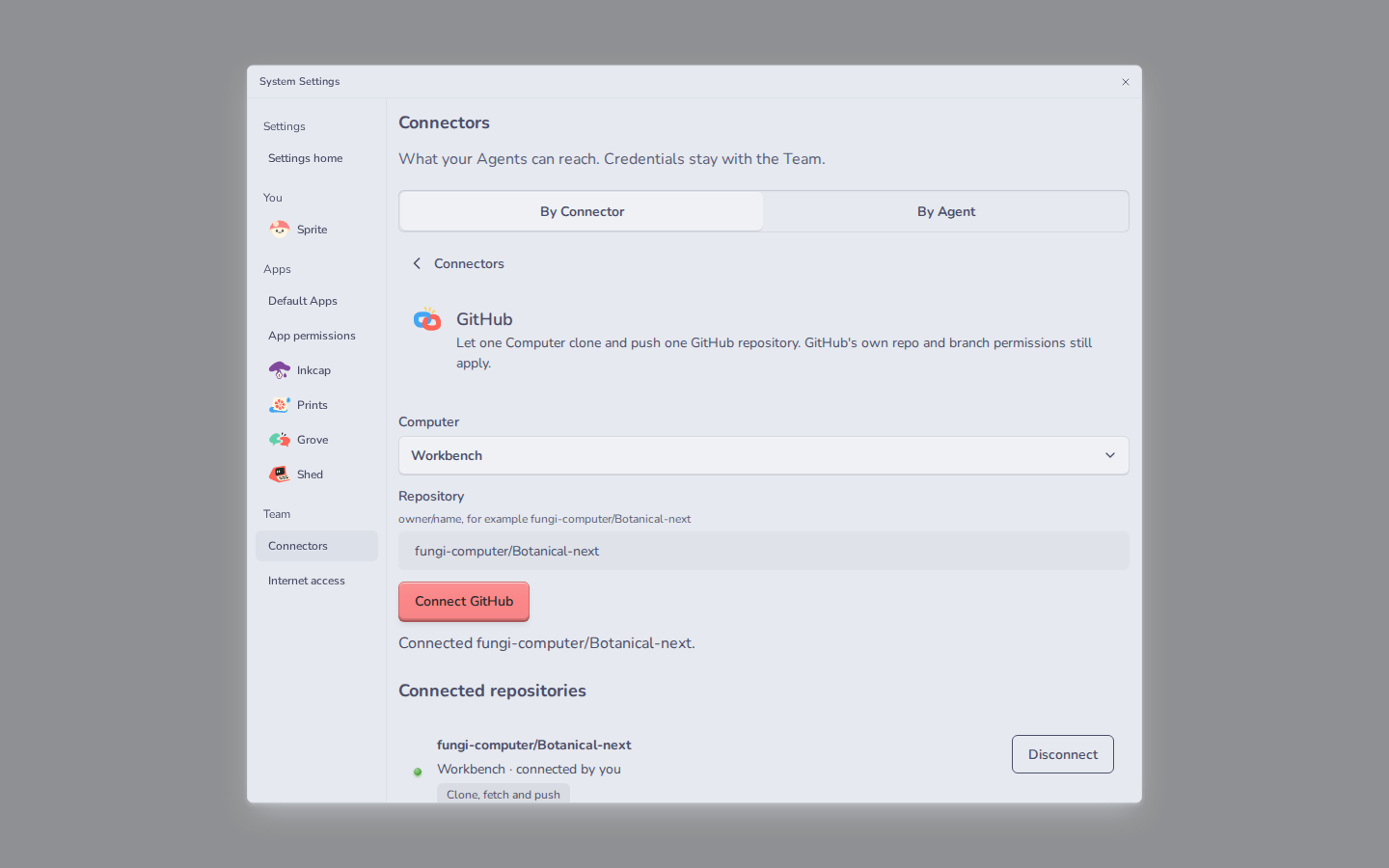
A connected repository shows up under Connected repositories.
## Ask the Agent to use it
[Section titled “Ask the Agent to use it”](#ask-the-agent-to-use-it)
Talk to the Agent that owns that Computer. This prompt is illustrative: replace the public example repository with one included in your GitHub App installation, and ask for a push only if that installation has write access.
TEXT
```text
Clone https://github.com/octocat/hello-world, fix the typo in the README,
commit it on a new branch and push the branch.
```
Use the `https://github.com/...` address. SSH addresses like `git@github.com:...` don’t work from a Computer.
## What the connection allows
[Section titled “What the connection allows”](#what-the-connection-allows)
* Git transport for that repository on the selected Computer. It does not grant general GitHub API access or access to other private repositories.
* `git push` only when the GitHub App can write to the repository and the destination branch permits it.
GitHub still has the final say on every push. The App is limited by its installation’s repository selection and permissions. Branch protection still applies.
If a push is refused, `git` tells you why:
| Message | What to do |
| ------------------------------------ | ------------------------------------------------------------------------------------- |
| `no GitHub connection that can push` | Connect the repository to this Computer, and check the App can write to it on GitHub. |
| `not installed on this repository` | Add the repository to the Fungi GitHub App’s repository selection on GitHub. |
| `protected branch hook declined` | Push to another branch, then open a pull request on GitHub. |
| `GitHub rate-limited this push` | Wait a minute and push again. |
To remove access, choose **Disconnect** next to the repository and confirm. If **GitHub not configured** appears, this host cannot start a GitHub Connection; ask its operator to configure the integration. If Connections is temporarily unavailable, use **Retry** rather than assuming authorization succeeded. Disconnect prevents new authorized Git operations, but a request already admitted can finish.
## GitHub sign-in and connected logins
[Section titled “GitHub sign-in and connected logins”](#github-sign-in-and-connected-logins)
Using **Continue with GitHub** to sign in to Fungi does not give a Team access to your repositories. The Team connection above is a separate authorization. Likewise, **Account → Connected logins** manages Apps such as Fungi Local that access your Fungi account; it does not disconnect this GitHub repository connection. Manage repository access from the Team’s **System Settings → Connectors → GitHub** section.
# Contribute to Fungi
> Agree a change, set up a source checkout and prepare a reviewable patch.
Start with the problem you want to solve. Open an issue with the maintainers of the component you use before writing a patch. Include the component version or Git revision, the expected result and a small reproduction. Agree the scope and source checkout with the maintainer.
For help finding the right maintainer, use the [support contact](/account/privacy/#contact). Send security reports through that page’s security contact instead of posting exploit details or credentials in a public issue.
## Set up a workspace checkout
[Section titled “Set up a workspace checkout”](#set-up-a-workspace-checkout)
These instructions use the Fungi workspace containing `mise.toml`, `mise.lock` and `pnpm-lock.yaml`. For a separately distributed package, follow its own README and license.
Install [Mise](https://mise.jdx.dev/getting-started.html), the tool that selects the workspace’s Node.js and pnpm versions. The minimum Mise version is recorded in `mise.toml`. Review that file, then run these commands from the workspace root:
TERMINAL
```sh
mise trust
mise install --locked
mise run setup
mise run doctor
```
`mise install --locked` installs the tools recorded in `mise.lock`. `mise run setup` installs the frozen pnpm dependency graph. Both installation steps need access to their download sources. `doctor` reports the required tool versions as JSON; its overall status should be `pass`.
If a version is wrong, use the locked tools rather than updating the dependency graph to match your machine. Checks do not install missing dependencies for you.
## Find the owner of a change
[Section titled “Find the owner of a change”](#find-the-owner-of-a-change)
| Source directory | Responsibility |
| ---------------- | ------------------------------------------------ |
| `apps/` | Customer Apps, the Hub, terminal UI and websites |
| `packages/` | Reusable modules and their public contracts |
| `runtimes/` | Local, App and Computer execution |
| `services/` | Edge and host service composition |
| `tooling/` | Development, checks and deployment tooling |
Read the component’s README, exported interface, a real caller and the nearest test before changing it. Keep the behavior and its callers together. Generated API pages come from source comments; edit those comments and use the package’s `docs:write` command when its README specifies one.
## Check a small change
[Section titled “Check a small change”](#check-a-small-change)
Run the nearest existing test first, then the affected component’s gate. For example, this checks Cairn, the identifier package, from a prepared workspace:
TERMINAL
```sh
mise run check:package -- @fungi.computer/cairn
```
The command accepts a package name or workspace directory. It runs the component’s routine checks, including its tests and applicable API-docs check. It does not publish the package. A change used by another component also needs that caller’s relevant test. Native or browser tests may require Linux, a runtime build or other prerequisites described in the component’s README.
For documentation-site changes, build the site and check its internal links:
TERMINAL
```sh
pnpm turbo:run run build --filter=@fungi.computer/docs
pnpm --dir apps/docs run check:links
```
The link check covers built same-site paths and assets. Review heading links and external destinations separately. Existing executable documentation examples run through `pnpm --dir apps/docs test`; new code fences are not automatically added to that proof. Keep examples complete and state any account, runtime or permission they require.
## Send a patch for review
[Section titled “Send a patch for review”](#send-a-patch-for-review)
Work on a task branch and preserve other contributors’ changes. Make one coherent change, include a regression test when behavior needs one, and use a Conventional Commit message such as `fix(cairn): reject an invalid identifier`. Use the installed Git hooks.
In the agreed review channel, include:
* The source revision and files changed.
* The user-visible problem and how the change fixes it.
* The exact checks run, their results and any qualification you could not run.
Do not include account data, credentials or copied production logs. The maintainer joins the change and runs the required combined checks. A source patch does not authorize deployment or publication. License and attribution requirements come from the component’s actual license and notices; one component’s license does not cover unrelated code.
# Customize your Team dashboard
> Fork Tourtois, accept a Release and choose the App your Team opens on.
Your Team opens on its dashboard at its own address, such as `garden.fungi.computer`. The default is **Tourtois**, an App that opens your other Apps and arranges their windows. You can change Tourtois or choose another available App as the dashboard.
You need to own the Team to fork, build, accept Releases and change this selection. Members use the dashboard the owner chooses. An Agent can carry out approved source and publication work only with the owner’s explicit delegated authority.
## Fork and change Tourtois
[Section titled “Fork and change Tourtois”](#fork-and-change-tourtois)
1. Open **App releases** in Team settings.
2. Choose Tourtois under **Platform App**, then **Create source fork**.
3. Select the resulting **Team App** and note its repository.
4. Edit and push that fork’s source on `main`. Keep its captured recipe and dependencies. For a first change, alter an App-owned label without changing its capabilities or host integration.
5. Choose **Build Computer** and **Build current revision**. Check the source revision, digest and Release ID when the candidate appears.
Tourtois also offers **Fork Tourtois** in its advanced App settings. That control creates the same kind of Team-owned source fork and provides **Open Team Git access**. Continue building and accepting it through App releases.
A build leaves the live dashboard alone. Use **Preview candidate** to inspect the new page before acceptance. Preview has no Team resource permissions, so it cannot qualify the real directory, child-App launches or Agent access.
Choose the existing dashboard App under **App to replace**, then **Accept release** to select the candidate for this Team. Check the acceptance result and reopen the workspace. Test opening another App and switching focus before sharing the change with your Team.
## Choose another dashboard App
[Section titled “Choose another dashboard App”](#choose-another-dashboard-app)
In the Team workspace, choose an available App under **Team dashboard App**. Only Apps with an available selected Release and visual surface appear as usable choices. The selected App replaces Tourtois as the dashboard.
Choosing an App changes which App opens. It does not approve file, Agent, generation or child-App-hosting access. An App needs the declared and granted capabilities for the dashboard features it implements. Tourtois asks the host to mount each child under that child’s own identity and permissions.
Opening Settings from Tourtois uses host-rendered controls and your signed-in authority. The dashboard App does not gain administration rights by showing that entry point.
## Reset and recover
[Section titled “Reset and recover”](#reset-and-recover)
**Reset to Tourtois** clears the custom dashboard choice. The Hub also offers it when the selected dashboard cannot open, so recovery does not depend on that App rendering its own settings. Your fork and saved source remain.
Resetting the dashboard choice does not undo a Release override you accepted for the Team’s default dashboard App. If that Release is the problem, restore its selection separately through App settings. Keep a known-good Release ID before replacing it. A revoked Release is not a usable recovery choice.
If acceptance or selection conflicts, refresh the current App and workspace facts before trying again. If the request’s outcome is uncertain, read the selected Release first. Do not assume an error means the old dashboard stayed selected.
Tourtois runs on the App origin and connects through Agar. It does not receive Team sign-in cookies or its children’s grants. Layout and focus arrange windows. They do not retarget another App’s accepted work or change an Agent’s Home.
# Host a game server
> Create a game server for your Team and share its connection details.
Game Servers are enabled per Team. On a Team with Game Servers, you create and manage servers in the Games App.
## Choose a game
[Section titled “Choose a game”](#choose-a-game)
The Games App offers Minecraft, Terraria, Factorio, Valheim and Project Zomboid. The create flow lets you choose a server size and shows the available variant, its hourly rate and your Team’s usage credit before you start.
## Create a server
[Section titled “Create a server”](#create-a-server)
1. Open **Games** for your Team, choose **Servers**, then choose a game and **Create**. If you only see playable games, server management is not enabled for your Team.
2. Give the server a name your Team will recognize.
3. Choose a game and any variant shown for it.
4. Complete the game’s required settings:
* **Minecraft:** The server operator must accept the [Minecraft EULA](https://www.minecraft.net/eula).
* **Valheim:** Choose a server password of at least five characters. Share it only with the people you want to join.
* **Project Zomboid:** Set an admin password of at least eight characters. Keep this separate from the password you give players.
* **Terraria and Factorio:** No additional settings are required.
5. Review the hourly price and credit balance, then create the server.
The price is charged while the server is awake. The rate can vary by game; use the value shown in the create flow.
## Join your server
[Section titled “Join your server”](#join-your-server)
Open the server in the Games App and copy the connection address shown in its details. Use that address in the matching game’s multiplayer screen. Minecraft supports Java and Bedrock through Geyser. Enter the Valheim server password when the game asks for it.
If the server is asleep, start it from the Games App and wait for it to become ready before joining. Stop it when your group is finished playing.
## Back up or restore a world
[Section titled “Back up or restore a world”](#back-up-or-restore-a-world)
Backups are managed from the server details. Stop the server before requesting a backup or restoring one. A new backup appears after the server host completes the request. Restoring a backup replaces the current world with the selected copy.
If you do not see the Games App or its server controls, Game Servers are not enabled for your Team.
# Find, install and sell Apps
> Browse Bazaar, install an App into your Team and understand how listings and purchases work.
Bazaar is your Team’s App gallery. A listing describes an App, its maker and its price. Installing adds the App to your Team. The permissions you grant it still control what it can do.
## Get an App
[Section titled “Get an App”](#get-an-app)
1. Open Bazaar from your Team’s App launcher.
2. Search for an App or choose a category. Open its listing to read the description, screenshots, seller and price.
3. For a free App, choose **Install** and confirm if the Hub asks. When the request finishes, its card says **Installed**. Choose **Open** in the listing detail or use your Team’s launcher.
4. For a paid App, the Team owner chooses **Buy** and confirms the Hub’s purchase prompt. The Hub takes the page to Stripe-hosted checkout, which returns to the Team. Complete that checkout.
5. Payment confirmation grants your Team an entitlement, but does not install the App. Reopen Bazaar, select the purchased listing, choose **Buy** again and confirm. An active entitlement installs the purchased Release without another checkout. Choose **Open** in its detail or use your Team’s launcher.
Cancelling the host’s confirmation returns the listing to **Install** or **Buy**. It does not mark the App installed or leave a failed purchase to retry. If **Open** fails after installation, retry Open; the installation stays intact.
The App window’s **Back** button returns from a listing to the gallery with your search, category and scroll position. **Browse all Apps** clears both a search and a category filter when there are no matching listings. A new Team’s gallery shows available offers even when it has installed none of them.
Team members can install free Apps. Spending Team money belongs to the owner. Bazaar also needs the Team’s approval to browse and acquire Apps. **Browsing only** means it can show listings but cannot install or begin a purchase.
**Included with every Team** describes an App supplied with your Team. **Coming soon** has no acquisition action. If a priced listing says **Purchases open soon**, paid checkout is disabled on that deployment.
A checkout link is not proof of payment. Fungi grants the entitlement after it receives the signed payment confirmation. Returning from checkout alone does not grant it. If checkout appears again when you return to buy the purchased listing, check that Fungi has received the payment confirmation before paying again.
See [Use Apps](/guides/use-apps/) for opening an App and managing its permissions.
## What a purchase includes
[Section titled “What a purchase includes”](#what-a-purchase-includes)
A paid listing sells one published Release of an App. A Release is an immutable version. The purchase gives your Team access to that Release. It does not promise later Releases or a subscription.
Listings are free or have a one-time USD price. An API price’s `amountMinor` is an integer number of cents. For example, `1000` means $10.00 before tax. The listing price is separate from the model, media or Computer usage the App can request. See [Billing](/account/billing/) for Team usage charges.
## List your own App
[Section titled “List your own App”](#list-your-own-app)
First [build an App](/guides/build-an-app/) and [publish its Release](/guides/publish-an-app/). The seller Team must own the App and have a published Release at the listed surface route.
### Settings → Team → Selling
[Section titled “Settings → Team → Selling”](#settings--team--selling)
Only a Team owner can use **System Settings → Team → Selling**. Set up payouts with Stripe, or continue setup if Stripe still needs information. Opening setup does not verify the seller; the payout status shows when paid selling is ready.
Under **Your Apps**, choose **Sell this App** to create a free or one-time paid listing. The price preview uses the configured platform fee, rounded down to whole cents, to show what you receive. Free listings remain available when paid selling is off.
**Sales** shows checkout creation times and amounts, without buyer details. **Refund** requests a full refund of your sale; confirmation comes from the signed refund event. **Open Stripe dashboard** opens your own Stripe dashboard.
### API reference
[Section titled “API reference”](#api-reference)
Seller operations use authenticated Hub APIs. Requests that list or refund must come from the seller Team’s owner. Browser mutations also require the Hub’s same-origin protections. Seller onboarding, refunds, and the seller Apps, Sales and dashboard APIs require the signed-in owner’s browser session and `marketplace.manage`; Team keys receive HTTP 401 on these routes. The availability, seller-status and listing APIs below retain their existing Team-key admission.
All paths below start with `/api/teams//marketplace`. Replace `` with your seller Team’s identity.
| Operation | Method and path | Result |
| ---------------------------- | ------------------------------------- | ------------------------------------------------------------------------------------------------------------ |
| Check paid-flow availability | `GET /availability` | Whether paid operations are configured and the configured `platformFeeBasisPoints` (`null` when paid is off) |
| Check seller status | `GET /seller` | The seller’s onboarding and payment status |
| Open seller onboarding | `POST /seller/onboarding` | A Stripe-hosted onboarding URL |
| Read your Apps and listings | `GET /seller/apps` | Your Team’s published Apps and listings |
| Read your sales | `GET /seller/sales` | Sales with checkout creation times, without buyer details |
| Open your Stripe dashboard | `POST /seller/dashboard` | A short-lived dashboard URL for the signed-in seller |
| Create a listing | `POST /listings` | The created listing |
| Refund your sale | `POST /purchases//refund` | Acceptance of a full-refund request |
A listing names `appId`, `releaseId` and `surfaceRoute`, plus a name, tagline, description, category and price. Categories are Agents, Creative, Developer, Games and Productivity. You can include an icon and screenshots with alt text. A free price uses `kind: "free"`. A paid price uses `kind: "one-time"`, `currency: "usd"` and `amountMinor`.
Paid selling needs an enabled checkout deployment and a seller account that Stripe permits to accept charges. Complete its onboarding and check seller status before creating a paid listing. Merely opening onboarding does not verify the seller.
## Refunds and failed requests
[Section titled “Refunds and failed requests”](#refunds-and-failed-requests)
The seller owner can request a full refund of its own sale. The signed refund confirmation ends the buyer’s entitlement. A refund request being accepted does not mean that confirmation has arrived. Removing a listing from discovery does not refund purchases or revoke existing access.
If the gallery fails to load, use **Try again**. A failed refresh keeps the last gallery visible. If an acquisition fails, its **Try again** action retries the same request. Check your installed Apps and checkout state before treating a lost response as a failed purchase.
Permission denials need the appropriate Team role and App approval. Payment configuration and seller restrictions need attention at their respective owners. Repeatedly clicking Buy or relisting a Release does not fix either.
# Make a game with your Agent
> Shape a small Vishnu game with an Agent, test it, and share a build.
Vishnu games are code projects. Work with an Agent that can read and change the project files, and keep the project open in the same folder while you build it.
Install the Vishnu CLI with the scoped package `@fungi.computer/vishnu`, then create the Acorn starter. The unscoped npm package `vishnu` is a different project:
Illustrative: this setup needs a published Vishnu npm release and Node 24 or newer; it creates a new project folder.
TERMINAL
```sh
npm install --global @fungi.computer/vishnu
vishnu new acorn-garden
cd acorn-garden
```
The CLI needs the pinned simulation kernel for `vishnu check`, `vishnu test` and `vishnu build`. Set `VISHNU_PORTAL` to the origin of the Vishnu Portal that serves the kernel before running those commands. The CLI verifies the downloaded kernel against the pin in `vishnu.json`; it refuses different bytes. If your account has no Vishnu Portal configured, ask your Fungi administrator for its origin before continuing.
## Start with the Acorn game
[Section titled “Start with the Acorn game”](#start-with-the-acorn-game)
The Vishnu starter is a small playable game. Press **P**, then click the grass to plant acorns. They grow into trees, every third tree attracts a cat, and nine trees win. Starting with it gives your Agent working rules and a test to extend.
Ask your Agent to read the project’s `AGENTS.md` first. Then describe one small game idea, including what the player does and how they win. For example:
> Turn this into a tiny game about a frog protecting a pond. Give the player one clear action and a way to win. Keep the rules deterministic, add tests for the new rules and for winning, and run the Vishnu checks.
The main game is `cartridge.ts`; its rules are tested in `cartridge.test.ts`. Ask the Agent to change one mechanic at a time and explain the controls and goal when it finishes.
## Check and play the game
[Section titled “Check and play the game”](#check-and-play-the-game)
Run the project checks from its folder:
Illustrative: these commands need the starter project and a configured Vishnu Portal serving its pinned simulation kernel.
TERMINAL
```sh
vishnu check
vishnu test
vishnu build
```
`check` typechecks the cartridge and runs authoring checks. `test` runs its tests against the simulation kernel. `build` creates a static game in `dist/`. Fix any failure and run the checks again before sharing the build.
To play the build locally, serve `dist/` with a static file server. If Python 3 is installed, use:
Illustrative: this long-running server needs a completed `dist/` build and a free local port 8080; stop it when you finish playing.
TERMINAL
```sh
python3 -m http.server -d dist 8080
```
Otherwise, use Node’s package runner to start a static server:
Illustrative: this alternative downloads `http-server` from npm and runs until you stop it; it also needs the completed build and port 8080.
TERMINAL
```sh
npx --yes http-server@14.1.1 dist -p 8080
```
Open `http://127.0.0.1:8080/`, click the world to focus it, and try the controls.
## Publish and share
[Section titled “Publish and share”](#publish-and-share)
For publishing from an Agent on an authorized Team Computer, send the build through the Hub:
Illustrative: publishing needs an authorized Team Computer, a completed build and a Hub with its Portal publishing credential configured.
TERMINAL
```sh
vishnu publish dist --hub
```
The Hub uses its Portal credential for the publish request; the Agent’s Computer does not need a Portal login or token. See [Publish from your Agent through the Hub](/guides/vishnu-engine-features/publish-from-agent/) for the full workflow.
A new game is unlisted: anyone with its link can play it, but it does not appear on the public gallery. An operator reviews games before listing them there. Share the play link with the people you want to try it.
## Add engine features
[Section titled “Add engine features”](#add-engine-features)
Use these short examples when you want your game or Agent to use an engine feature:
* [Define a custom actor](/guides/vishnu-engine-features/custom-actors/)
* [Checkpoints and retry](/guides/vishnu-engine-features/checkpoints-and-retry/)
* [View-only point lights](/guides/vishnu-engine-features/view-only-point-lights/)
* [Click to target actors](/guides/vishnu-engine-features/click-to-target-actors/)
* [Drive an actor with the movement keys](/guides/vishnu-engine-features/direct-control/)
* [Prebuilt and breakable structures](/guides/vishnu-engine-features/breaking-structures/)
* [Build houses from blueprint modules](/guides/vishnu-engine-features/blueprints/)
* [Stage a moment with a test scenario](/guides/vishnu-engine-features/test-scenarios/)
* [Frame-aware observation for riders](/guides/vishnu-engine-features/frame-aware-observation/)
* [Start local games paused and control shared worlds](/guides/vishnu-engine-features/pausing-worlds/)
* [Publish from your Agent through the Hub](/guides/vishnu-engine-features/publish-from-agent/)
# Make and save images
> Generate images in Prints, save them on a Computer and recover an unfinished save.
Prints turns a prompt into media saved on your Team’s Computer. Its gallery shows the files in the selected folder. You can also upload images you already have.
## Choose where the images go
[Section titled “Choose where the images go”](#choose-where-the-images-go)
1. Open Prints from your Team’s App launcher.
2. Select the Computer you want to use. Prints needs permission to read and write its files. Generation also needs the Team’s media approval and credit.
3. Open the folder chip beside the composer controls (**Choose folder** before a folder is selected). Enter an absolute folder path, such as `/media`. Choose **Use** if it exists, or **Create** to make it.
Prints remembers one folder choice per Computer in its App backend. Switching Computers changes which folder and gallery you see. A normal image write does not create a missing folder for you.
See [Use Computers](/guides/use-computers/) for Computer selection and [Use Apps](/guides/use-apps/) for permission settings.
## Generate an image
[Section titled “Generate an image”](#generate-an-image)
1. Write a prompt in the composer. Describe the subject and the result you want. For example: “A small green mushroom house beside a stream, watercolor.” This is an illustrative prompt. Submitting it starts billed generation.
2. Choose a **Generation model** and its available size and settings.
3. Check the displayed save folder, then choose **Generate image**.
4. Wait for the reserved gallery tile to become a readable image. Selecting a saved Computer image asks the host to open that file in Inkcap.
The model list and settings come from the Team’s granted media service. If a model supports image references, use **Add reference** on a gallery image. The composer shows the model’s reference limit. Changing models can clear references or reduce that selection.
An empty model list or disabled generation action needs attention to media access and funding. An Agent’s own provider key does not supply Prints’ hosted media access. Usage is charged to the Team. See [Billing](/account/billing/).
## Browse the gallery
[Section titled “Browse the gallery”](#browse-the-gallery)
The gallery reads media files from the selected Computer folder. It loads pages of up to 24 matching files; choose **Load more images** when more are available. Loaded images are ordered by the Computer’s file modification time, newest first, with filenames breaking ties. An image’s loading speed does not determine its order.
Generation and uploads reserve tiles while work is running. A saved result replaces its placeholder after Prints can read and decode it. If preview loading fails, use the tile’s retry action. An unavailable preview is different from a failed write.
## Recover an unfinished save
[Section titled “Recover an unfinished save”](#recover-an-unfinished-save)
Generating, saving and confirming completion are separate stages. Before sending a generation, Prints records its Computer, request, input and destination. After the image is saved, its backend records the completed print and file location together and removes the unfinished record. A lost completion reply can still be recovered using the same attempt.
Use the failed tile’s retry button or **Retry** in **Activity**. These actions reuse that attempt’s request and destination. When generated bytes are retained, recovery saves those bytes without asking for another generation. Editing the composer does not change the captured attempt.
After reopening Prints, retained attempts appear as **Unfinished image** in **Activity**. Choose **Resume** for that attempt, with its original Computer selected. Switching Computers does not move the attempt to the new destination. **Load more activity** retrieves further retained attempts when offered.
**Discard** removes an unfinished recovery record. It does not delete a file already saved or undo a charge. Dismissing a notice, or choosing **Clear**, only hides nonblocking notices; it does not discard an attempt or cancel work. Setup notices stay until their cause is resolved.
A new submission creates a new attempt and can incur another charge. Use the existing retry action to recover work rather than submitting the prompt again. A missing preview alone does not prove that no file was saved or no charge occurred. Check the destination in Inkcap if Prints cannot display it.
## Upload your own images
[Section titled “Upload your own images”](#upload-your-own-images)
Drop image files into Prints, paste images, or choose **Upload images**. Uploads write to the selected media folder and show progress. When the saved image can be read and decoded, it replaces its reserved tile.
An upload retry keeps the original Computer and destination. Return to that Computer before retrying. Dismissing a progress notification only hides it. It does not cancel the write. Use the transfer’s cancel action when available.
## If something fails
[Section titled “If something fails”](#if-something-fails)
Open **Activity** beside Send for setup, image and upload details. When the Team is out of credit, Prints shows **Media generation needs Team credits. Add credits in Billing, then retry.** Choose **Open Billing** to open the Team’s Billing page. Funding and App permission are separate requirements.
When Prints loses its host connection, **Activity** shows **Connection lost** with “Reopen the App to connect again.” Reopen Prints from your Team’s App menu, then check the selected Computer and permissions before retrying. This setup notice stays until the connection returns; **Clear** does not dismiss it. An empty gallery does not establish that the connection is working.
| What you see | What to check |
| ------------------------------------------- | ------------------------------------------------------------------- |
| No usable media folder | Check the path and file permissions, then choose or create a folder |
| No generation models or a permission denial | Check the App’s media approval and selected Computer |
| A funding refusal | Choose **Open Billing** and fund the Team before retrying |
| An unfinished generation | Use its retry action on the original Computer |
| A saved file with an unavailable preview | Check the file and retry loading it before generating again |
| A failed upload | Read its error and retry on its original Computer |
Prints reports generation, save and preview failures separately. Keep the existing attempt when its outcome is uncertain. A successful request being accepted is different from an image being saved and visible in the gallery.
# Publish an App
> Build, inspect and accept the Folder list fork without changing a live App by accident.
Publish the **Folder list** frontend from [Build an App](/guides/build-an-app/). Use the same Inkcap source fork, App ID and captured build recipe. Folder list is the example’s name. Its directory label still comes from the fork’s App metadata.
You need to own the Team, have its source fork available, and choose a Computer with enough funded capacity to build it. Editing source, building a Release and selecting that Release for your Team are separate actions.
## Commit the source
[Section titled “Commit the source”](#commit-the-source)
Finish the frontend change in the fork’s `apps/inkcap/src/main.tsx` and push it to that repository’s `main` branch through your authorized Team Git workflow. Keep the captured dependencies and recipe. The builder uses the recorded recipe, not arbitrary package scripts you add to the fork.
Illustrative: an instruction to your authorized Agent is, “Commit the Folder list change in this Team’s Inkcap fork and push it to main. Do not accept a Release.” Check its returned commit and repository before building.
## Build a candidate
[Section titled “Build a candidate”](#build-a-candidate)
1. Open **App releases** in Team settings.
2. Choose the same fork under **Team App**. The page shows its repository.
3. Choose **Build Computer**, then **Build current revision**.
4. Wait for a successful candidate. Inspect its source revision, artifact digest and Release ID. Confirm the source is your pushed commit.
The owner captures the current `main` revision and binds the build to the chosen Computer, App and recipe. A successful build stores immutable artifacts and creates a Release candidate. It does not change the Team’s selected App. Another push or build does not rewrite that candidate.
Recent successful builds have an **Inspect** button. Use it to reopen a candidate after leaving or refreshing the page. A failed build remains failed, with no candidate accepted and the previous live selection unchanged.
## Preview, then accept
[Section titled “Preview, then accept”](#preview-then-accept)
**Preview candidate** opens the candidate without Team resource permissions. Use it to inspect the page and controls. Folder list cannot prove file access there. An empty Computer context or a refused permission request is expected in this preview.
To use this candidate in the Team:
1. Choose Inkcap under **App to replace**. This replaces that Team’s Inkcap selection with your fork. Other Teams keep their selections.
2. Check the candidate ID again, then click **Accept release**.
3. Wait for **Release accepted**. The Team’s selection now uses the candidate.
4. Before testing consent, open the installed App’s settings and its permissions. In **Permissions**, set **Computer access** to **No Computer access**, click **Save permissions** and confirm the saved setting. If revocation is pending, wait for it to finish.
5. Open or refresh the selected App from the Team dashboard. Click **List files** and approve listing through the host’s consent UI.
6. If the App asks for a Computer, use **Choose Computer** in its host controls, refresh the App and click **List files** again.
Check that it shows your Computer’s file names and leaves file contents alone. Before testing decline, clear Computer access through App settings and refresh the App again. Declining consent must prevent the listing request.
Replacing Inkcap keeps the installation’s existing grants, including Computer, Agent and model permissions. Acceptance does not add permissions or clear them. An existing listing grant can satisfy the request without showing consent, so clear Computer access before each consent or decline test. Review all retained permissions separately when replacing any App.
## Update and recover
[Section titled “Update and recover”](#update-and-recover)
| Situation | What to do |
| ------------------------------ | ----------------------------------------------------------------------------------------------------------------------------------------------- |
| Build failed | Read the reported failure, check the source and Computer, then build again. The live selection stays unchanged. |
| Source changed while building | Refresh the source and confirm which pushed revision you want. Build that revision rather than assuming the older candidate contains new edits. |
| Acceptance conflicts | Refresh the App directory and review its current selection before trying again. Another accepted change may have advanced its authority. |
| Request status is uncertain | Inspect build history or the current selection before issuing a different operation. A lost response does not mean nothing happened. |
| Files refused after acceptance | Check the selected Computer and the App’s approved listing permission. A Release is not a grant. |
| Release revoked | It cannot be newly selected or served as an eligible Release. Choose another verified, non-revoked Release through App settings. |
To ship another change, edit and push the same source fork, build a new candidate, inspect it and accept it explicitly. Keep the previous Release ID if you need to restore a known version. Advanced App settings let the owner change the selected App and Release IDs or reset an override. Restoring a version changes selection, not its immutable bytes or an App backend’s data.
This workflow publishes a Team selection. It does not list the App for sale in Bazaar or create an anonymous public website. Those have separate ownership, publication and access decisions. There is no `fungi publish` command in this workflow.
# Security and isolation
> How Teams, Computers, Apps, and connected credentials are separated.
Fungi separates Team authority from the places that run code. These boundaries reduce what an Agent, App, or Computer can reach; they do not make code you run automatically safe. Review an App’s permissions and the access you give a Computer before using either with sensitive work.
## Teams and guest code
[Section titled “Teams and guest code”](#teams-and-guest-code)
Your Team owns its membership, resources, and grants. A **grant** is permission for one operation, not a copy of a Team-wide credential. The Hub checks Team authority before dispatching guest code. Hosted guest execution runs in a Team-assigned shard with its own process user and network namespace. Shards share the host kernel: this is not a separate physical machine or a guarantee against every kernel vulnerability.
Guest code calls Team resources through a broker, which checks the invocation, grant, Team, and current revocation state. A refused or unavailable operation fails rather than falling back to execution in the Hub process. Disconnecting a resource or removing a grant stops new calls; a call already admitted may finish. If you suspect a grant is too broad, revoke it and review the affected resource’s activity.
## Computers and Apps
[Section titled “Computers and Apps”](#computers-and-apps)
A hosted Computer runs in a jailed **microVM**: a small virtual machine with its own guest kernel. Its lifecycle, files, and processes belong to that Computer. A local folder attached through Shiitake is different: commands on your machine run with your operating-system user’s access, not inside the hosted microVM. See [Attach a local folder](/guides/attach-a-local-folder/) before allowing an Agent to use one.
An App has a Team-scoped installation and a published Release. Its browser surface uses an App origin and an iframe boundary; browser framing is not the authority for backend operations. The Hub checks the Team and App grant before an App backend runs in the execution shard. Do not treat another Team’s App or its data as accessible merely because you know an App identifier.
## Network and credentials
[Section titled “Network and credentials”](#network-and-credentials)
Computer internet access is on by default and can be turned off in that Computer’s settings. Public requests go through a policy gateway with method, destination, and rate-limit checks; the gateway does not add your connected credentials to anonymous downloads. This is not unrestricted internet access. A private GitHub repository uses the separate Team-authorized connection path, and GitHub applies its own repository and branch permissions. See [Connect GitHub](/guides/connect-github/) for disconnect and push limits.
Provider tokens and personal model keys stay with their credential custodian, not in Team directory records or guest responses. A connected integration can be unavailable, out of scope, or revoked. Reconnect it or choose another authorized resource; do not put a provider key into an Agent prompt or App source to work around a refusal. [Your own model key](/models/your-own-key/) explains the difference between a personal key and a Team-paid request.
## What these checks establish
[Section titled “What these checks establish”](#what-these-checks-establish)
The repository has separate native tests and scratch-host drills for shard placement, cross-Team broker refusals, App execution, revocation, and some network denials. A passing control for one path does not prove all guest-code kinds, DNS-rebinding resistance, every provider, or every deployment. Hosted microVM isolation also depends on the configured host and its operating-system permissions. Operators with access to the host and its protected stores have different authority from Team members; Fungi does not claim to hide Team data from those operators. Report unexpected cross-Team access rather than relying on these boundaries as a substitute for backups or access review.
# Call Fungi models with a Team key
> Make a Team key and use Fungi's models from any OpenAI-compatible client.
Your Team has its own model endpoint. It speaks the same API as OpenAI’s chat completions, so most OpenAI clients and SDKs work once you change two settings: the base URL and the key. Usage is paid from your Team’s balance.
## Make a key
[Section titled “Make a key”](#make-a-key)
1. In your Team, open **Team keys**.
2. Under **Issue a key**, give it a name you will recognize later, like `laptop script`, and pick how long it lasts.
3. Tick **Generate with Fungi models (Team-funded)**. Leave the other rights off unless this key also needs to use your Computers.
4. Choose **Issue key**. Copy the key now. It starts with `fungi_` and is shown only once.
Treat the key like a password. Anyone who has it can spend your Team’s balance within the rights you selected. Team members can manage keys. Choose the shortest useful lifetime; revoke a key from **Team keys** if it is exposed.
## Find your Team’s address
[Section titled “Find your Team’s address”](#find-your-teams-address)
Your Team ID is the part after `/teams/` in the address of your Team’s settings pages, such as **Team keys**. Your endpoint is:
Illustrative: replace `` with your own Team ID; this address is a template, not a request.
TEXT
```text
https://fungi.computer/api/v1/teams/
```
## Try it
[Section titled “Try it”](#try-it)
Put the key and Team ID in your shell:
Illustrative: these placeholder values must be replaced with the key you issued and your Team ID.
TERMINAL
```sh
export FUNGI_KEY="fungi_..."
export FUNGI_TEAM="your-team-id"
```
List the models your Team can use:
TERMINAL
```sh
curl "https://fungi.computer/api/v1/teams/$FUNGI_TEAM/models" \
-H "Authorization: Bearer $FUNGI_KEY"
```
Ask for a reply:
TERMINAL
```sh
curl "https://fungi.computer/api/v1/teams/$FUNGI_TEAM/chat/completions" \
-H "Authorization: Bearer $FUNGI_KEY" \
-H "Content-Type: application/json" \
-d '{
"model": "@fungi/luna",
"messages": [{ "role": "user", "content": "Name three mushrooms I can grow at home." }]
}'
```
The same call with the official OpenAI SDK for JavaScript:
JS
```js
import OpenAI from "openai";
const fungi = new OpenAI({
apiKey: process.env.FUNGI_KEY,
baseURL: `https://fungi.computer/api/v1/teams/${process.env.FUNGI_TEAM}`,
});
const reply = await fungi.chat.completions.create({
model: "@fungi/luna",
messages: [
{ role: "user", content: "Name three mushrooms I can grow at home." },
],
});
console.log(reply.choices[0].message.content);
```
And for Python:
Illustrative: this version requires the optional `openai` Python package in your Python environment, along with the same key and Team ID.
PYTHON
```python
import os
from openai import OpenAI
fungi = OpenAI(
api_key=os.environ["FUNGI_KEY"],
base_url=f"https://fungi.computer/api/v1/teams/{os.environ['FUNGI_TEAM']}",
)
reply = fungi.chat.completions.create(
model="@fungi/luna",
messages=[{"role": "user", "content": "Name three mushrooms I can grow at home."}],
)
print(reply.choices[0].message.content)
```
## What works
[Section titled “What works”](#what-works)
| | |
| --------- | -------------------------------------------------------------------------- |
| Endpoints | `GET /models` and `POST /chat/completions` |
| Streaming | `"stream": true`, plus `stream_options.include_usage` for token counts |
| Tools | `tools` and `tool_choice` |
| Settings | `temperature`, `max_tokens` or `max_completion_tokens`, `reasoning_effort` |
| Models | `GET /models` lists those available to your Team. |
Current Fungi addresses include `@fungi/luna`, `@fungi/sol` and `@fungi/trip`.
For Team-key requests, errors use OpenAI’s shape:
| Status | `code` | Meaning |
| ------ | ------------------- | ----------------------------------------------------------------------------------------------- |
| `401` | `invalid_token` | The Authorization header is malformed, including an empty Bearer or a non-Fungi, non-JWT token. |
| `401` | `invalid_api_key` | A `fungi_` key is unknown, revoked, expired, or used against another Team’s address. |
| `404` | `permission_denied` | The key lacks the model right, on both `/models` and `/chat/completions`. |
| `403` | `permission_denied` | The Team is suspended, or the key loses authority at admission or spend time. |
Omitting the Authorization header selects browser-session authentication, not Team-key authentication. Without a session, `GET /models` returns `401 {"error":"Unauthorized"}`; a `POST /chat/completions` without the browser Origin returns `403 {"error":"Forbidden"}`. These are not OpenAI-shaped errors.
## Scope, revocation and recovery
[Section titled “Scope, revocation and recovery”](#scope-revocation-and-recovery)
The key’s **Generate with Fungi models (Team-funded)** right permits this endpoint; Computer discovery, creation, file access and command execution are separate rights. A key can cover all Team Computers or selected ones. For a model-only client, leave Computer rights off. You can change a key’s scope on **Team keys** or revoke it; a request already admitted may finish.
If a call returns `429` with `insufficient_quota`, check available Team credit in [Billing](/account/billing/). For `rate_limit_exceeded` or `rate_limited`, wait and retry rather than issuing another key. A `503` means the inference or key authority is unavailable; retry later. Revoked and expired keys cannot be recovered—issue a new key and replace it in your client without sharing it in logs or support messages.
# Use Apps
> Open your Team's Apps and choose the resources they may use.
Open the App launcher in your Team’s workspace and choose an [App](/concepts/app/). Your dashboard is **Tourtois** unless the Team owner selects another App. Opening an App does not give it access to every Agent or Computer.
## Choose a Computer and review access
[Section titled “Choose a Computer and review access”](#choose-a-computer-and-review-access)
For file and terminal work, choose the Computer you want in the window’s status bar, at the bottom-left of the App’s window. Each window keeps its own Computer. To inspect an Agent’s files, select its Home Computer if one is attached. Inkcap, Prints and Shed then work on that Computer’s resources.
When an App asks for access, review the operations and resources in the permission prompt. Reading files, writing files, running commands, creating Agents and sending messages are different permissions. An App can be installed but still lack permission for a task. To review access later, open the top mushroom menu, choose **System Settings…**, then **App permissions** or the App’s name. On a narrow screen, use the **Settings category** selector. Settings shows the Team’s current permissions; the host checks whether you may change them.
## Arrange and return to Apps
[Section titled “Arrange and return to Apps”](#arrange-and-return-to-apps)
The dock focuses an open App and restores a minimized one. Window controls minimize or close it. Closing an App can ask you to save or discard unfinished work; it does not stop an Agent’s accepted task.
Use **Layout** in the top bar to choose **Tiled** or **Floating**. When a window is zoomed, **Restore layout** returns to the unzoomed arrangement. The top bar’s App menus follow the focused window. Switching focus does not change another App’s selected Computer or Agent. When every App is minimized or closed, Tourtois shows Team Home, Recent and Apps so you can reopen one.
An App with its own navigation exposes **Back** in its window chrome. In Bazaar, Back returns from detail to the same gallery search, category and scroll position. It does not navigate away from your Team.
## Pick a task
[Section titled “Pick a task”](#pick-a-task)
| App | A first task | What to check |
| ---------- | ------------------------------------------------------------------------------------ | ------------------------------------------------------------------------------------------------------------ |
| **Grove** | Choose **Create**, select an Agent, then **Start** a conversation. | Read the reply and inspect the result. An accepted prompt can still be waiting. |
| **Inkcap** | Select a Computer, open a text file, edit it and choose **Save**. | Wait for save confirmation. Keep unsaved edits if the write fails. |
| **Prints** | Select a Computer and a media folder, enter an image prompt and generate. | Confirm that the result is saved and readable in that folder. |
| **Shed** | Select a Computer and open its terminal. | Check the connection and **Run commands** permission before running a command. |
| **Bazaar** | Search, open a listing, choose **Install** or **Buy**, then **Open** once installed. | Check availability, one-time price and the host’s confirmation. Browsing does not grant purchase permission. |
These tasks describe the Apps’ controls. A generated image or Agent reply depends on the selected model, funding and permissions. Local workbench fixtures do not prove live generation or payment.
## Files and media
[Section titled “Files and media”](#files-and-media)
In Inkcap, **Save file as** saves a draft or copy at a chosen path and refreshes the explorer. A retained tab belongs to its original Computer; select that Computer before saving or reloading it. If the file changed elsewhere, ordinary Save refuses to overwrite it. **Compare**, **Keep mine** and **Reload theirs** let you inspect or resolve the conflict. See [Open and edit a file](/guides/use-computers/#open-and-edit-a-file) for the exact choices, including Save As’s overwrite behavior.
In Prints, choose or explicitly create the destination folder before generating or uploading. Generation, saving and confirming completion are separate stages. The failed tile’s retry action or **Retry** in **Activity** reuses the same attempt. After reopening, **Resume** on an **Unfinished image** does the same. Starting a new generation creates new work and can incur another charge. An upload retries its captured destination rather than following a later Computer selection. See [Make and save images](/guides/make-and-save-images/) for recovery and gallery controls.
In Shed, starting a web server and exposing its port are separate actions. Use the process list to check the server, then expose its application port for a preview where the deployment supports one. Processes do not survive Computer sleep.
## Recover without losing work
[Section titled “Recover without losing work”](#recover-without-losing-work)
Read an error before retrying. Check the Team, selected resource, connection, permissions and [billing](/account/billing/). A failed operation is not proof that no changes happened. Inspect the file or task result before repeating work that writes, generates or sends something.
To change which App opens first, see [Customize your Team dashboard](/guides/customize-your-dashboard/). Selecting a dashboard does not give it special permissions.
# Use Computers
> Open an Agent's files, run a command, and inspect processes and previews.
A [Computer](/concepts/computer/) holds files and provides a place to run work. New Agents get a Computer by default, or you can choose **No Computer** in Grove. Home is the Agent’s default attached Computer. Choose that Computer in an App to work on the same files as the Agent. A Computer’s name is not its identity, so check the selection before saving or running anything.
If Home is detached, the Agent does not silently use another Computer. Attach an appropriate Computer and choose `/home ` yourself in the Agent’s conversation. The choice is shared across that Agent’s Sessions and takes effect on later runs; an active run keeps its captured target and fails if access is revoked.
## Open and edit a file
[Section titled “Open and edit a file”](#open-and-edit-a-file)
1. Open **Inkcap** from your Team’s App menu.
2. Select the Agent’s Home Computer in the status bar at the bottom-left of Inkcap’s window.
3. Allow the file access you need, then choose a file in the explorer. On a narrow screen, choose **Open file explorer** first.
4. Edit a text file and choose **Save**, or press **Ctrl+S** (**⌘S** on macOS). Wait for **Saved**. Edits you make while a save is running remain unsaved until you save them too.
Inkcap keeps your draft in the open tab if a read or save fails. A tab belongs to the Computer it came from: if you switch Computers, select the original one before saving or reloading that tab. Host **Back** returns to a previously visited tab without discarding its edits.
### When the file changes elsewhere
[Section titled “When the file changes elsewhere”](#when-the-file-changes-elsewhere)
An Agent, another App or another person can edit the same Computer file. On Save, Inkcap checks that the file still matches the text you opened or last saved. If it differs, the save is refused and Inkcap shows **This file changed on the Computer since you opened it**. Your draft stays open and unsaved; the Computer file is not overwritten.
Choose how to resolve it:
* **Compare** shows the Computer version and your draft. Removed lines come from the Computer; added lines are your edits. Comparing writes nothing. Choose **Back to editing** to return to your draft.
* **Keep mine** explicitly overwrites the Computer file with your draft.
* **Reload theirs** replaces your draft with the Computer file’s current text, discarding your unsaved edits.
Compare ignores an initial UTF-8 byte-order mark and differences between line endings so those alone do not highlight every line. This affects the display only, not the saved text or the check used by Save. Compare is a view of the versions, not an automatic merge.
For a clean tab, **Reload file** reads the latest saved contents. Ordinary reload is disabled while the tab has unsaved edits or a save is running. During a conflict, use the choices above.
### Create a file or save another copy
[Section titled “Create a file or save another copy”](#create-a-file-or-save-another-copy)
Choose **New draft**, write your text, then **Save file as**. Enter the Computer path and choose **Save As**. You can also use **Save file as** on an existing text tab. An absolute path starts with `/`; a relative path uses the selected explorer directory, or the open file’s directory when there is no selection. For a new draft without either, it uses the App’s current project directory.
After a successful Computer write, the tab adopts the path and the explorer refreshes. A failed write keeps your edits and the old path. **Save As to a different existing path replaces that file’s contents**; choose an unused path to keep both copies. Use ordinary **Save** when updating the current file with conflict protection.
To create an empty file or folder directly, open an explorer item’s context menu and choose **New file** or **New folder**. Enter a single name; the dialog shows the destination directory and reports an existing name. Rename and delete controls are not available in Inkcap. Use Shed or an Agent for those operations.
### File types and unsaved work
[Section titled “File types and unsaved work”](#file-types-and-unsaved-work)
PNG, JPEG, GIF, WebP, SVG and AVIF files open as image previews. Other files open as UTF-8 text; invalid UTF-8 is refused without replacing an existing tab.
You can write a local draft without Computer access and use **Download** to save it through your browser. **Save As** saves to the selected Computer when connected; without a connection, it starts a browser download. Closing a dirty tab or closing the App through its host offers save, discard and cancel choices. Keep the tab open until you have saved or downloaded work you want to keep.
## Run a command
[Section titled “Run a command”](#run-a-command)
Open **Shed**, select the Computer, and grant **Run commands** access. Its terminal runs on that Computer’s hosted execution backend. It does not run on your browser or in your laptop’s current folder.
Illustrative: these read-only shell commands need a running Computer and an admitted Shed terminal. They do not start an Agent or a model request.
TERMINAL
```sh
pwd
ls
```
Shed shows connection failures and lets you retry. An empty process list is different from a failed or unavailable process read.
## Processes and port previews
[Section titled “Processes and port previews”](#processes-and-port-previews)
The **Processes** panel lists retained commands reported by the selected Computer. Refresh it to check current state. Stop a running process with its Stop action. A process whose state is uncertain needs a fresh check before you assume it is running or finished.
For a web server, enter its listening port in **Exposed ports** and choose **Expose**. Exposing a port does not start a server. Port previews require deployment support as well as permission. Shed reports when previews are not configured instead of presenting an empty list as a working connection.
The terminal and Computer control ports are reserved. Use an application port, and remove its exposure when you no longer need it. A preview does not make your whole Computer or filesystem public.
## Sleep and recovery
[Section titled “Sleep and recovery”](#sleep-and-recovery)
Hosted execution starts on demand and can sleep when idle. Saved Computer files and running processes have different lifetimes. A process does not survive sleep. Check the process list and restart a needed server after waking the Computer. Keep your own backup or version-controlled copy of important work.
If an operation fails, check the selected Computer, App permissions and the connection before retrying. Inspect partial output or changed files before repeating a command with side effects. Buying credit and granting App access are separate steps. See [billing](/account/billing/).
You can also [attach a local folder](/guides/attach-a-local-folder/). Files sync both ways, and eligible commands can run on your machine while it is connected. Shed’s terminal, process list and port previews still use a hosted backend.
# Use Fungi in your editor (ACP)
> Connect Zed, Neovim, or another ACP client to Fungi, choose a model, and resume local conversations.
Use Fungi from your editor’s Agent panel. The Agent Client Protocol (ACP) connects the editor to Fungi running on your machine. Your project files and saved conversations use the same local service as the Fungi terminal.
## Set up Zed
[Section titled “Set up Zed”](#set-up-zed)
You need Node 22.13 or newer, [Shiitake’s supported environment](/install/), a local project folder, and Zed with custom ACP agent support. Fungi models require a signed-in account and a [funded Team](/account/billing/).
### 1. Install and sign in
[Section titled “1. Install and sign in”](#1-install-and-sign-in)
Install the CLI, then check that your terminal finds it:
TERMINAL
```sh
npm i -g @fungi.computer/spore
fungi --version
fungi acp --help
```
From your project folder, sign in:
TERMINAL
```sh
fungi login --provider fungi
fungi status
```
Complete browser sign-in, approve Fungi’s access, and choose the Team that pays for models. With one current Team, selection is automatic. `fungi status` shows the saved login and selected Team. See [Sign-in and your account](/account/sign-in/) for account help. Keep credentials out of editor settings.
Bare `fungi login` also signs in to Fungi. Start Zed under the same OS account and home directory as that terminal so it finds the saved login and Sessions.
### 2. Add Fungi to Zed
[Section titled “2. Add Fungi to Zed”](#2-add-fungi-to-zed)
Open Zed’s user settings and add this entry, merging it with any existing `agent_servers` entries:
JSON
```json
{
"agent_servers": {
"fungi": {
"type": "custom",
"command": "fungi",
"args": ["acp"],
"env": {}
}
}
}
```
Open your project folder in Zed. Open the Agent panel, then select **fungi** from the new-thread menu. Zed supplies the project directory to Fungi. The [Zed external-agent guide](https://zed.dev/docs/ai/external-agents) also covers custom agents and importing threads.
### 3. Pick a model
[Section titled “3. Pick a model”](#3-pick-a-model)
A new Session uses the Local Agent’s default model. To choose a specific model for your editor conversation, leave the thread idle and open a terminal in the same project folder:
TERMINAL
```sh
fungi sessions list
```
Find that conversation in the list, then run `fungi sessions resume `, replacing `` with its ID. In the Fungi terminal, enter `/model`, choose **Fungi**, then **Luna** (`@fungi/luna`) or another available model. Confirm the model shown in the terminal, then use `/exit` to close the terminal client. Continue the same thread in Zed.
The choice belongs to that Session. Signing in does not change an existing choice, and a new thread does not inherit another thread’s override. **Use agent model** clears the override. Choose models in the Fungi terminal; the ACP connection does not expose a model picker. For another provider, configure its login in Fungi and select its model in the same Session.
### 4. Send a prompt
[Section titled “4. Send a prompt”](#4-send-a-prompt)
In the Zed thread, send:
TEXT
```text
Do not use tools. Reply exactly ACP_LUNA_OK.
```
The reply streams into the Agent panel. Wait for the turn to finish before sending another task.
## Cancel and reopen a conversation
[Section titled “Cancel and reopen a conversation”](#cancel-and-reopen-a-conversation)
Use Zed’s **Stop** control while Fungi is working. Wait for the turn to stop; closing a panel or editor only disconnects that client and can leave accepted work running. Cancellation does not undo file changes already made. Partial text from an interrupted reply may disappear when you reopen the conversation; history restores saved messages.
Reopen the Fungi thread from Zed’s history to load its saved messages. To bring in a Session started in the terminal, open **Thread History**, choose **Import Threads**, and select Fungi. Use the same project folder. Importing or reopening history does not send another model prompt. **Reload Agent** in the thread menu reconnects the agent and restores the conversation.
You can also run `fungi resume` in that project to choose a saved Session in the terminal. `fungi stop` stops the shared local service for all its clients; saved Sessions remain on disk.
## Set up Neovim with Agentic.nvim
[Section titled “Set up Neovim with Agentic.nvim”](#set-up-neovim-with-agenticnvim)
[Agentic.nvim](https://github.com/carlos-algms/agentic.nvim) connects Neovim to Fungi through ACP. You need Neovim 0.11 or newer, Git, and [Shiitake’s supported environment](/install/). The steps below use the Agentic.nvim revision verified with Neovim 0.12.5 on Linux.
### 1. Install the CLI and plugin
[Section titled “1. Install the CLI and plugin”](#1-install-the-cli-and-plugin)
[Install Shiitake](/install/), then check both executables:
TERMINAL
```sh
nvim --version
fungi --version
fungi acp --help
```
For a standard Neovim configuration, install Agentic.nvim as a native package:
TERMINAL
```sh
data_home="${XDG_DATA_HOME:-$HOME/.local/share}"
plugin_dir="$data_home/nvim/site/pack/plugins/start/agentic.nvim"
git clone https://github.com/carlos-algms/agentic.nvim "$plugin_dir"
git -C "$plugin_dir" checkout e280deec82cfe642bba2c0d0157d320b706c094a
```
This pins the plugin to the verified revision. If you already manage it with a plugin manager, keep that installation and use the same revision there; do not install a second copy.
### 2. Sign in and configure Fungi
[Section titled “2. Sign in and configure Fungi”](#2-sign-in-and-configure-fungi)
In a terminal opened in your project folder, run:
TERMINAL
```sh
fungi login --provider fungi
fungi status
```
Complete browser sign-in, approve access, and choose your funded Team. Check that `fungi status` shows the Team you want. Start Neovim from the same OS account and home directory so it can use that saved login. No credentials belong in the Lua configuration.
This Local setup uses browser sign-in. For a client connecting directly to a Team-hosted Agent with a Team key, see [Direct Team-hosted Agent clients](#direct-team-hosted-agent-clients).
Add this to your `init.lua`, or your plugin manager’s configuration callback:
LUA
```lua
require("agentic").setup({
provider = "fungi",
acp_providers = {
fungi = {
name = "Fungi",
command = "fungi",
args = { "acp" },
},
},
})
```
If Neovim cannot find Fungi, replace `"fungi"` in `command` with the executable’s absolute path. In Neovim, `:echo executable('fungi')` returns `1` when it is on Neovim’s PATH. Node must also be available there.
### 3. Open a Session, choose Luna, and send
[Section titled “3. Open a Session, choose Luna, and send”](#3-open-a-session-choose-luna-and-send)
Start Neovim in your project folder and open the chat:
VIM
```vim
:lua require("agentic").open()
```
Before sending a prompt, use the [model selection steps above](#3-pick-a-model) to select **Fungi → Luna** (`@fungi/luna`) for this Session in the Fungi terminal. Confirm the model shown, then use `/exit` to return to Neovim. Agentic’s ACP connection does not offer Fungi’s model picker.
Write this in Agentic’s input pane and press **Ctrl+S** to submit:
TEXT
```text
Do not use tools. Reply exactly ACP_NEOVIM_OK.
```
The reply streams into the chat pane. Wait for completion before sending another prompt.
### 4. Cancel and restore history
[Section titled “4. Cancel and restore history”](#4-cancel-and-restore-history)
To cancel a running turn:
VIM
```vim
:lua require("agentic").stop_generation()
```
Wait for **Generation stopped by the user request**. Closing Neovim only disconnects the client; it can leave accepted work running. Cancellation does not undo changes already made.
To reopen a conversation, including after restarting Neovim in the same project, open the history picker:
VIM
```vim
:lua require("agentic").restore_session()
```
Select the saved Session. Its saved user prompts and completed assistant replies return without another model call. **Interrupted partial assistant text may not be saved**: the live text visible before cancellation can disappear on restore. Use the same project directory, OS account, and home directory to find the same history. If a history request omits the project directory, set the provider’s arguments explicitly:
LUA
```lua
args = { "acp", "-C", "/absolute/path/to/project" },
```
The real-client proof uses Neovim 0.12.5 and Agentic.nvim revision [`e280deec82cf`](https://github.com/carlos-algms/agentic.nvim/tree/e280deec82cfe642bba2c0d0157d320b706c094a), with Luna streaming, cancellation, and saved history restored after restarting Neovim.
## Other ACP clients
[Section titled “Other ACP clients”](#other-acp-clients)
Configure a custom agent with executable `fungi`, arguments `["acp"]`, and stdio transport. Run `fungi login --provider fungi` in a terminal first. A client with terminal-auth support can invoke `fungi acp login` for sign-in.
Use the same OS account and home directory as your terminal so the editor finds your saved login. The client supplies an absolute project directory when it creates or loads a Session. If its history browser omits the directory, configure arguments `["acp", "-C", "/absolute/path/to/project"]`, replacing the path with your project folder.
Streaming, cancellation, and Session listing/loading use ACP; the client’s UI determines where those controls appear. Fungi’s Local ACP connection accepts one project root. Leave client-supplied MCP servers and additional directories empty. Run `fungi acp` through the client: it waits for protocol input rather than opening a terminal conversation.
## Troubleshooting
[Section titled “Troubleshooting”](#troubleshooting)
### Fungi is missing or cannot start
[Section titled “Fungi is missing or cannot start”](#fungi-is-missing-or-cannot-start)
Run `fungi --version` and `fungi acp --help` in a terminal. If those work but Zed cannot launch it, set `command` to the absolute path of your installed `fungi` executable. GUI editors can have a different PATH from your shell. Check that the editor can also find Node, then reload the agent.
### Sign-in, credit, or model errors
[Section titled “Sign-in, credit, or model errors”](#sign-in-credit-or-model-errors)
Run `fungi status` and `fungi doctor` from the project folder. Check the selected Team, its credit, and the Session’s model. Sign in again if Fungi requests it. An unavailable model or login error does not silently switch providers. A Zed model-provider key does not configure Fungi’s login.
### `runtime:rejected` or “Tool runtime failed”
[Section titled “runtime:rejected or “Tool runtime failed””](#runtimerejected-or-tool-runtime-failed)
This means the runtime rejected an operation; it can happen during local tool setup before inference. It is not by itself a sign-in error. Fungi bounds skill discovery summaries while retaining the skills prompt, so a large catalog does not need to be removed to work around that summary limit.
Inspect the affected Session with `fungi sessions show --errors`. Update the CLI with the install command above. After active work finishes, run `fungi stop`, then reload the editor’s agent to start the updated service. Keep your skills and Session history. If the error persists, run `fungi doctor` and include the Session error when reporting it. Doctor checks configuration and connectivity; it does not prove that a model prompt succeeds.
### History is empty or the connection drops
[Section titled “History is empty or the connection drops”](#history-is-empty-or-the-connection-drops)
Check that the editor opens the same project folder under the same OS account. Import the Fungi threads or use **Reload Agent**. Reconnecting does not cancel active work. Use `fungi sessions status ` to inspect its current state before retrying a task that changes files.
For protocol diagnostics, run `dev: open acp logs` from Zed’s Command Palette. When [reporting a problem](/account/privacy/), include CLI/editor versions and the error message; remove credentials and private conversation content from any logs you share.
## Direct Team-hosted Agent clients
[Section titled “Direct Team-hosted Agent clients”](#direct-team-hosted-agent-clients)
A client connecting directly to a Team-hosted Agent with a Team key needs `agent.read`, `agent.send` and `agent.manage` for the selected Agents. `agent.send` sends messages into existing Sessions; starting, stopping or configuring Sessions and running Session extension commands requires `agent.manage` (labelled **Create and manage Agents and their sessions** in the Team keys UI). It does not imply `agent.read` or `agent.send`. A key restricted to selected Agents keeps that restriction for extensions. The local `fungi acp` setup above uses your local service and signed-in model access.
# Use the terminal
> Start and resume local Agent work with Shiitake.
[Install Shiitake](/install/), then open a terminal in your project folder. The `fungi` command opens an Agent conversation. **Shed** is different: it opens a shell on a Team Computer in your browser.
## First run and models
[Section titled “First run and models”](#first-run-and-models)
Run `fungi`. Setup asks which model to use. Choose your Claude or ChatGPT subscription and sign in in the browser, or use a provider key. You can skip setup choices and configure a model afterwards.
TERMINAL
```sh
fungi
```
To use Fungi hosted models instead, run `fungi login --provider fungi` and choose the Team that pays:
TERMINAL
```sh
fungi login --provider fungi
```
`fungi login --provider fungi` opens Fungi browser sign-in and approval. Choose the Team that pays for model use. A single current Team is selected automatically. You need to belong to a funded Team. Inside the conversation, use `/model` to choose **Fungi** and a hosted model such as **Luna**. Login alone does not change the Session’s selected model.
`fungi login` defaults to Fungi. Choose another provider explicitly with `fungi login --provider ` or `/login` inside the conversation. Use `/thinking` for the selected model’s supported levels. **Use agent model** clears a Session’s override. **Model default** leaves the thinking level to the provider. Changing a preference does not restart the conversation or prove that the next request will succeed.
Fungi models run through the selected Team and use its hosted billing. Your own provider key or subscription is billed by that provider. The conversation and local tools remain on your machine in either case. Hosted Computer operations have their own permissions and funding. Never paste keys into an Agent prompt.
If Fungi asks you to sign in again, repeat the Fungi login. If it asks for credits, fund the named Team. An unreachable or paused service requires a retry when available. A failed Fungi request does not switch to your other providers.
## Give work and find it again
[Section titled “Give work and find it again”](#give-work-and-find-it-again)
Type a task and press Enter. During a run, Enter sends steering and Tab queues a follow-up. Shift+Enter or Alt+Enter inserts a newline. An accepted prompt is saved work, not a completed result. Read the final reply and check the files.
Closing the terminal leaves the shared local service running and keeps saved Sessions. Return from the same project folder:
Illustrative: these commands need a project with saved local Sessions. Replace `1` with the number from your own list.
TERMINAL
```sh
fungi sessions list
fungi sessions resume 1
```
`fungi resume` opens the saved-Session picker. `fungi resume --last` opens the latest. Use `-C /path/to/project` to select another project. A full Session ID or a unique ID prefix can replace the list number.
`fungi sessions status --json` reads the latest Session’s state. `fungi sessions show --last` prints bounded history. `fungi sessions watch --last` follows live state. Status alone does not prove that a particular task succeeded.
## Commands and recovery
[Section titled “Commands and recovery”](#commands-and-recovery)
Type `/` to discover commands. `/help` lists them and `/keys` shows keyboard bindings. Unknown or failed slash commands remain commands, not model prompts.
| Action | What it does |
| ----------------------- | --------------------------------------------------------------------------------------------------------------------------- |
| Escape | Dismiss an open dialog first. Otherwise, withdraw a waiting prompt or cancel active work. |
| `/cancel` | Withdraw a waiting prompt or cancel active work while keeping the conversation. |
| `/queue` | Show accepted queued prompts. |
| Up in an empty composer | Recall your newest pending message, including images and delivery intent. If it already started, the draft stays unchanged. |
| `/retry` | Resend the failed instruction. Check for partial changes first. |
| `/continue` | Send a new instruction to continue a stopped task. |
| `/reconnect` | Retry Session history observation. It does not repeat the task. |
| `/exit` | Close this terminal client. |
Ctrl+C dismisses an open dialog first. Otherwise, it exits an idle terminal or one with a waiting prompt, leaving that prompt queued. During active work, the first Ctrl+C requests cancellation. A second Ctrl+C exits even if cancellation is still pending. From your shell, `fungi stop` stops the shared local service for all its clients. Saved Sessions remain, and the next launch starts the service again.
For a single automated prompt, use `fungi run "your prompt"`, or pipe a prompt to `fungi run`. Configure a model interactively first. The command waits for its accepted task’s result and prints the final answer. Failed or cancelled work is not a successful completion.
## Team Computers and local folders
[Section titled “Team Computers and local folders”](#team-computers-and-local-folders)
Use `fungi login --fungi-mcp ` with your Team’s MCP endpoint to authorize Team Computer tools. The browser opens Fungi sign-in and approval and selects the Team for model billing. Model access and MCP share one Fungi account login. The project can remember the MCP endpoint, while credentials stay in the local credential store. The model’s billing Team and the project’s Computer endpoint are separate choices. Changing one does not retarget the other. `fungi mcp show`, `fungi mcp use ` and `fungi mcp forget` manage that project selection.
This connection does not sync your folder or let a hosted Agent run commands on your machine. For that, follow [Attach a local folder](/guides/attach-a-local-folder/), review the access prompt and keep the attachment command running. `fungi computers` lists the selected Team’s Computers. `fungi computers start ` asks to start an existing one.
# Build houses from blueprint modules
> Assemble buildings from rooms with doors, windows and doorways, then stand them up as real, breakable buildables.
A town is many buildings, and a building is a few rooms. Blueprints let you describe a room once and reuse it. Declare a room as a module: its size in cells, the openings on its sides, and named slots inside it for your game’s containers or furniture:
TS
```ts
import { assembleBlueprint, blueprintModule } from "vishnu";
const living = blueprintModule("acorn.living", {
size: [4, 3],
openings: [
{ side: "south", at: 1, kind: "door" },
{ side: "east", at: 1, kind: "doorway" },
],
slots: { sofa: [0, 0] },
});
const kitchen = blueprintModule("acorn.kitchen", {
size: [3, 3],
openings: [{ side: "north", at: 1, kind: "window" }],
slots: { fridge: [2, 0] },
});
const cottage = assembleBlueprint({
modules: [
{ module: living, at: [10, 4] },
{ module: kitchen, at: [14, 4] },
],
});
```
A recipe places each module by its north-west corner. It can also turn a module (`rotate`, in clockwise quarter turns) or mirror it east to west. `assembleBlueprint` joins the rooms into one building:
* a wall two rooms share becomes one piece;
* a doorway leaves an open gap into the next room;
* everything else on the outside becomes a wall, a door or a window.
The same recipe always gives the same pieces in the same order, so a seeded town is the same town forever.
Then stand it up with your own buildables:
TS
```ts
import { compileBlueprint, prebuildBatches } from "vishnu";
const { plans, unplaced } = compileBlueprint(cottage, {
construction: acornConstruction,
pieces: { wall: "acorn.wall", door: "acorn.door", window: "acorn.window" },
groundAt: (x, z) => ground.get(`${x},${z}`),
});
for (const action of prebuildBatches(partyId, plans)) context.action(action);
```
Every piece is a real buildable. Players can deconstruct it, repair it, or break it (see [Prebuilt and breakable structures](/guides/vishnu-engine-features/breaking-structures/)). A piece over a column with no ground is not placed; it is listed in `unplaced` for you to handle. `prebuildBatches` splits the plans into prebuild actions of at most 256 structures each.
## Mistakes it catches
[Section titled “Mistakes it catches”](#mistakes-it-catches)
Assembling refuses, with a coded diagnostic:
* two rooms that overlap;
* a doorway that leads outside;
* two rooms that disagree about a wall they share, such as a door on one side and a window on the other.
Blueprints are single-storey.
# Breaking structures
> Let a game rule tear down a finished wall, door or station with no worker.
Workers deconstruct finished structures: they stand at the structure and carry its salvage away. Some games also need a structure to simply break, say a door smashed by a horde, a wall hit by a cannonball, or a dock that burns. `breakStructure(site)` does that from any rule or behavior action. It runs the same native teardown as deconstruction (ports, dependents, geometry and indexes, all or nothing), with no worker involved.
The engine keeps no hit points. Your game decides when a structure breaks. Put an integrity component on the buildable; the engine installs it on the finished site. Your own rule lowers it, then breaks the site at zero:
TS
```ts
import { breakStructure, buildable, component, query, system } from "vishnu";
const Integrity = component<{ value: number; max: number }>("acorn.integrity", {
version: 1,
fields: { value: "number", max: "number" },
});
// Every finished fence starts with 60 integrity.
export const fence = buildable("acorn.fence", {
name: "fence",
sprites: "acorn.fence",
geometry: { kind: "wall", height: 2 },
materials: [{ kind: "wood", quantity: 2 }],
workSeconds: 3,
workReachBelowCells: 0,
onRemove: { salvage: [{ kind: "wood", quantity: 1 }] },
}).with(Integrity, { value: 60, max: 60 });
// A world rule: whatever wore a fence down to nothing breaks it.
export const collapse = system({
id: "acorn.collapse",
version: 1,
reads: [Integrity],
writes: [],
run(context) {
for (const row of context.query(query(Integrity)))
if (row.get(Integrity).value <= 0) context.action(breakStructure(row.id));
},
});
```
The action is refused, and the world is left unchanged, if the site isn’t finished or something still stands on it. Salvage declared in `onRemove` lands as a pile of ground stock where the structure stood. With no salvage declared, nothing is left behind.
## Start with standing buildings
[Section titled “Start with standing buildings”](#start-with-standing-buildings)
A world can begin with finished structures: a town, a harbour, a starter base. `prebuildStructures(party, plans)` plans them and finishes them at once, with no work and no materials. The same buildables the player builds make up the town, so everything in it can later be deconstructed or broken. Build the plans with your construction extension’s `candidates`, from the ground cells you want:
TS
```ts
import { prebuildStructures, query, system } from "vishnu";
import { acornConstruction } from "./building";
const founding = system({
id: "acorn.founding",
version: 1,
reads: [Town],
writes: [Town],
run(context) {
const town = context.query(query(Town))[0];
if (!town || town.get(Town).founded) return;
context.action(
prebuildStructures(
town.get(Town).party,
acornConstruction.candidates({
catalog: "acorn.fence",
target: { edges: [{ cell: [0, 12, 0], axis: "x" }] },
}),
),
);
context.write(Town, town.id, { ...town.get(Town), founded: true });
},
});
```
Issue it once. A saved flag like `founded`, or the world’s opening actions, keeps a restored world from building it twice. All the plans stand, or none do: if one structure can’t stand (someone is in the way, or it overlaps another), the world stays as it was.
## Doors that start shut
[Section titled “Doors that start shut”](#doors-that-start-shut)
An aperture finishes open by default: a gap anyone can walk through. Give a door `closed: true` in its geometry and it finishes shut, whether it is built by work or prebuilt. `setStructureOpen` then opens and closes it as usual:
TS
```ts
geometry: { kind: "aperture", height: 4, openingBottom: 0, openingHeight: 3, closed: true },
```
# Checkpoints and retry
> Save named simulation checkpoints and let players retry from them.
Vishnu keeps a small, in-memory ring of named checkpoints for each running world. Save one at a meaningful moment; the built-in **Retry** action restores that simulation state. The most recent checkpoint with a name replaces its previous one, and only the eight newest names are retained.
In the Acorn starter, import `system` and add this rule to the cartridge’s `rules` array:
TS
```ts
const saveOpening = system({
id: "acorn.save-opening",
version: 1,
reads: [],
writes: [],
run(context) {
if (context.clock.tick === 0) context.checkpoint("opening");
},
});
```
The first simulation tick records `opening`. Players can choose **Retry from opening** in the game’s actions. Checkpoints are runtime snapshots, not published save files; use a new name for each milestone you want to keep.
TERMINAL
```sh
vishnu check && vishnu test && vishnu build
```
# Click to target actors
> Bind a game command to clicking an eligible actor.
`actorTarget(component)` connects a command’s input schema, eligible subjects and click binding. The client offers clicks only for visible actors that still have that component; the command handler remains responsible for game rules.
For example, add a `pet` command to the Acorn starter. `Visual` is already on the starter’s trees and cats:
TS
```ts
const target = actorTarget(Visual);
const pet = command({
title: "Pet",
category: "Acorn",
description: "Choose an actor to pet.",
input: target.input,
reads: [Visual],
writes: [],
subjects: target.subjects,
localPresentation: {
bindings: [{ id: "pet", label: "Pet", ...target.binding }],
},
run(_context, { entity }) {
return { actions: [], writes: [] };
},
});
```
Import `actorTarget` and `Visual` from `vishnu`, add `pet` beside `plant` in `commands`, and keep the handler’s reads and writes aligned with its actual game effect. The example handler deliberately has no effect.
TERMINAL
```sh
vishnu check && vishnu test && vishnu build
```
# Define a custom actor
> Give a Vishnu cartridge its own actor, appearance, and movement.
The starter library supplies a tree and a wandering cat. A cartridge can define another actor with `actor()`: attach the components it needs, give it a visual id, and add it to the cartridge’s `actors` list. Place it in `scene`, or let a rule spawn it later.
`Body` and `Traversal` make an actor eligible for native movement; they do not move it by themselves. A deterministic behavior chooses a destination and submits `move()`. The native runtime checks the route and applies the movement.
Add this small snail to the Acorn starter’s `cartridge.ts`. The unique `acorn.snail` visual id below uses the library cat figure as temporary artwork; replace that binding with your cartridge’s art when it is ready.
TS
```ts
import {
actor,
action,
behavior,
Body,
component,
Destination,
MEADOW_VERTICAL_METRES,
move,
Position,
predicate,
query,
Traversal,
Visual,
type VisualBinding,
} from "vishnu";
import { cat, libraryVisuals, tree } from "vishnu/library";
const SnailRace = component<{ finishX: number; nextAt: number }>(
"acorn.snail-race",
{ version: 1, fields: { finishX: "number", nextAt: "number" } },
);
const snailIsReady = predicate("acorn.snail-ready", {
reads: [SnailRace, Destination],
test: (subject, context) =>
context.clock.now >= subject.get(SnailRace).nextAt &&
!context.query(query(Destination)).some((row) => row.id === subject.id),
});
const crawl = action("acorn.snail-crawl", {
reads: [SnailRace, Position],
writes: [SnailRace],
facts: ["terrainSurfaces"],
exclusive: "movement",
run(subject, context) {
const race = subject.get(SnailRace);
const at = subject.get(Position);
if (at.x >= race.finishX) return;
const x = Math.min(race.finishX, Math.floor(at.x) + 1);
const z = Math.round(at.z);
const surface = context.terrainSurfaces([[x, z]])[0];
if (!surface) return;
context.action(
move(subject.id, {
x,
y: (surface.cell[1] + 0.5) * MEADOW_VERTICAL_METRES,
z,
frame: null,
}),
);
context.write(SnailRace, subject.id, {
...race,
nextAt: context.clock.now + 1,
});
},
});
const snailMovement = behavior(
"acorn.snail-movement",
(scene) =>
scene
.find(SnailRace, Position, Body, Traversal)
.where(snailIsReady)
.do(crawl),
{ every: 1 },
);
export const snail = actor("acorn.snail")
.with(Position)
.with(Body, { speed: 0.5 })
.with(Traversal, { clearanceCells: 1, maxStepCells: 1 })
.with(Visual, { sprite: "acorn.snail", label: "Snail" })
.with(SnailRace, { finishX: 0, nextAt: 0 })
.behaves(snailMovement);
// Add `snail` to the existing actors list, SnailRace to components,
// and place(snail, { at: [-3, 3] }) to the existing scene.
// Merge this binding into page.visuals beside ...libraryVisuals.
const snailVisuals = {
...libraryVisuals,
"acorn.snail": {
kind: "figure",
key: "cat",
worldRole: "actor",
motion: { kind: "foot", stride: 0.25 },
} satisfies VisualBinding,
};
```
In the existing `defineCartridge` call, add the actor and its component, place it on the meadow, and use the merged visual bindings:
TS
```ts
actors: [tree, cat, snail],
components: [TreeOrder, SnailRace],
scene: [place(tree, { at: [0, 0] }), place(snail, { at: [-3, 3] })],
page: {
// Keep the Acorn subtitle and its other page settings.
subtitle: "Plant acorns on a meadow; every third tree lures a cat.",
visuals: snailVisuals,
},
```
`Visual` stores the sprite id and readable label on the actor. `page.visuals` maps that id to presentation art; the example reuses the library’s cat figure so the snippet runs without an art pack. The simulation identity stays `acorn.snail`, independent of that temporary picture.
Add this test to `cartridge.test.ts`. It checks the snail’s own movement rule, not just that its definition typechecks:
TS
```ts
test("the snail crawls to the finish", () => {
const world = testWorld(acorn);
try {
world.until(() => world.find(snail).some(({ x }) => x >= 0), {
within: 10,
what: "the snail crossing the finish",
});
} finally {
world.dispose();
}
});
```
## React to projectile hits
[Section titled “React to projectile hits”](#react-to-projectile-hits)
A behavior can read the projectile impacts of each step: a round striking a body, a cannonball hitting a hull. Pass `consumesImpacts: true`, and its predicates and actions see `context.impacts`. Each impact reaches the behavior once. Behaviors that don’t ask see no impacts, and their compiled system is unchanged.
TS
```ts
const takeHits = action("acorn.take-hits", {
reads: [Hull],
writes: [Hull],
run(ship, context) {
const hits = context.impacts.filter((hit) => hit.targetId === ship.id);
if (hits.length)
context.write(Hull, ship.id, { hull: ship.get(Hull).hull - hits.length });
},
});
const struck = behavior(
"acorn.struck",
(scene) => scene.find(Hull).do(takeHits),
{ consumesImpacts: true },
);
```
If the actor is a dressed, human-like character, the cartridge can also own a `Cast` and a paper-doll pack. That art pipeline is separate from `Visual` and `Body`; use it when a biped look needs authored heads, clothes, or poses.
TERMINAL
```sh
vishnu check && vishnu test && vishnu build
```
# Drive an actor with the movement keys
> Let the player walk one actor with WASD or the arrow keys, over real terrain.
Most games move actors by route: the player clicks, the actor walks there. Some games want one actor on the keys instead, like a survivor or a ship. Name that actor in the page settings:
TS
```ts
export const page = {
// ...
directControl: { entity: "acorn.hero" },
};
```
The player’s movement keys then drive it directly. The first key press takes over, and a route in flight stops. The world moves the actor in fixed steps, so every player sees the same result and a saved game resumes mid-step.
## Walkers keep their feet on the ground
[Section titled “Walkers keep their feet on the ground”](#walkers-keep-their-feet-on-the-ground)
An actor with `Traversal` is a terrain walker. When it is driven directly:
* it climbs or drops at most `maxStepCells` voxels in one step, and a taller ledge stops it;
* it never steps where there is no floor;
* a finished wall, a closed door or a structure filling a cell stops it, and it slides along the wall when the key points partly past it;
* an open door lets it through.
When the keys let go, your rules can route the actor again as usual. The route starts from wherever the actor stands, even between cells. So a rule can also shove it a little way (a knockback) and send it on its way afterwards.
## Aim with the mouse and the arrow keys
[Section titled “Aim with the mouse and the arrow keys”](#aim-with-the-mouse-and-the-arrow-keys)
A game driven with WASD often wants twin-stick aiming. Name the command that attacks in `page.aim`:
TS
```ts
export const page = {
// ...
directControl: { entity: "acorn.hero" },
aim: { command: "attack", pointer: true, arrows: true },
};
```
With `pointer`, a plain click on the world sends the command with `{ at: { x, z } }`. The point is the clicked actor, or the ground at the hero’s height. With `arrows`, holding an arrow key sends `{ toward: { x, z } }` (up is north, the way W walks) at once, then every `repeatSeconds` (a quarter second by default) while the key is held. The arrows then no longer move the hero. Your command decides what each attack does and how often one lands. Games without `aim` keep plain clicks for selection and the arrows for moving.
# Frame-aware observation for riders
> Read an actor's world position and position relative to its frame.
When an Agent observes a rider on a moving frame, the actor includes `frame` and `local` as well as its current world-cell `at`. Use `at` to reason about where the rider is in the world; use `local` to reason about where it sits on the vehicle or platform. The frame ID names the supporting entity.
An Agent can inspect the observed actor without confusing those coordinates:
TS
```ts
type RiderObservation = {
id: string;
at: { x: number; z: number };
frame?: string;
local?: { x: number; y: number; z: number; facing: number };
};
function riderReport(actor: RiderObservation): string {
if (!actor.frame || !actor.local) return `${actor.id} is not riding a frame`;
return `${actor.id} rides ${actor.frame} at local (${actor.local.x}, ${actor.local.z}); world cell (${actor.at.x}, ${actor.at.z})`;
}
```
For example, when a raft moves, `at` changes with it while `frame` and the rider’s relative `local` position identify the same place aboard the raft. This is observation data; game rules still own movement and boarding.
TERMINAL
```sh
vishnu check && vishnu test && vishnu build
```
# Start local games paused and control shared worlds
> Understand local start-paused behavior and shared-world controls.
Browser-local play starts paused so the player can orient before simulation time advances. The player presses **Continue** to begin. This is a local player behavior; a cartridge does not need a special flag.
To offer shared hosted worlds, enable them in the starter’s `page` settings:
TS
```ts
page: {
// Keep the other page settings.
sharedWorlds: true,
}
```
In a shared world, the owner can pause or resume the whole simulation from the player controls. Each participant can also choose **Hold my orders** or **Release my orders**. A personal hold stops that participant’s new orders; the shared simulation and other participants continue running. The hold survives reconnects.
TERMINAL
```sh
vishnu check && vishnu test && vishnu build
```
# Publish from your Agent through the Hub
> Publish a built Vishnu game using an Agent on an authorized Computer.
An Agent working on a Team Computer can send a built game through the Hub. The Hub supplies the Portal credential over its internal artifact channel, so the Computer does not need a Portal login or token.
Build and hand the output to the Hub:
TERMINAL
```sh
vishnu check
vishnu test
vishnu build
vishnu publish dist --hub
```
The Hub route must authorize the Computer for publishing. Use this command from that Agent’s authorized session. Do not run `vishnu login` on the Computer or put a Portal token in the project. Share a play URL only after the command prints it.
# Stage a moment with a test scenario
> Open a fresh world already set up for one moment, for a proof or a quick look.
Some moments take a long time to reach in play: the third night, a horde at the door, a ship low on shot. A test scenario opens a fresh world already set up for that moment. Declare it on the cartridge by id. It holds host actions (spawn a few actors, say) and commands the player “has already given”:
TS
```ts
export default defineCartridge({
// ...
scenarios: {
"door-siege": {
actions: [
spawn(brute, { receipt: "siege.1", cause: "scenario", at: [0, 3] }),
],
commands: [{ command: "walk", input: { target: { cell: [0, 0, -1] } } }],
},
},
});
```
Open the game with `?scenario=door-siege` to start a fresh local world in it. In a test, pass it to `testWorld`:
TS
```ts
const world = testWorld(game, { scenario: "door-siege" });
```
The scenario’s actions run after the world’s initial actions, and then its commands queue. A world started without a scenario never sees them, so your game never needs to check whether it is under test. An unknown id is refused.
# View-only point lights
> Add deterministic point lighting to a game visual.
A visual binding can draw a point light around an actor. It changes the view only: the radius, color and flicker never enter simulation state or affect game rules. The radius is in screen pixels, color is a 24-bit RGB number, and flicker is between `0` and `1`.
In the Acorn starter, set the tree entry in `page.visuals` like this:
TS
```ts
page: {
// Keep the other page settings and visuals.
visuals: {
...libraryVisuals,
"colony.tree": {
...libraryVisuals["colony.tree"],
light: { radius: 68, color: 0xff8a3d, flicker: 0.3 },
},
},
}
```
The light follows each tree that uses this visual. Since it is presentation data, adding or tuning it leaves saved simulation digests unchanged.
TERMINAL
```sh
vishnu check && vishnu test && vishnu build
```
# Add an Agent to WordPress
> Put Fungi chat on a WordPress page, test it as a visitor, and reply as the site owner.
Visitors can chat with your Fungi Agent without signing in. You give the Agent instructions about your business, add your website address, then copy one snippet into WordPress.
## Prepare your assistant
[Section titled “Prepare your assistant”](#prepare-your-assistant)
1. [Sign in to Fungi](/account/sign-in/), then choose your Team. A Team is the workspace that holds your Agent and pays for its messages.
2. Check [Billing and credit](/account/billing/). An invite can include credit; otherwise, add credit before running your assistant.
3. Open the Team menu → **System Settings…** → **Website assistant**. You arrive in **Channels**, where website chat is set up.
4. Choose **Set up a website assistant** if you have no Agents yet. Give it a name visitors will recognize, such as **Fern shop helper**, then choose **Continue**. An Agent is your assistant; this setup does not need a Computer. If you already have an Agent, choose **Add website** and select it.
5. Enter the address visitors actually open, such as `https://yourshop.com`. Leave out `/wp-admin`, page paths and query strings. If visitors also use `https://www.yourshop.com`, include it as a second address, separated by a comma. Include your staging address if you want to test there.
6. Under **What should the Agent do here?**, describe its tone and the facts it should use. For example:
> Be a friendly assistant for Fern and Frond. We open Monday to Friday, 9am–5pm, and Saturday, 10am–2pm. Sunday is closed. Local delivery is free for orders over £25. If you do not know an answer, offer to ask the owner.
7. Choose **Add website**, then **Copy snippet** in its installation guide.
The brief is private instructions for this website, with a 4,000-character limit. It does not automatically read your WordPress pages or import files. Review the Agent’s tools before putting it in front of visitors. Messages use Team credit. Approved website addresses control where the widget appears; they are not a substitute for spending controls.
## Put chat on one page
[Section titled “Put chat on one page”](#put-chat-on-one-page)
Sign in to your WordPress dashboard as an administrator who can save scripts. These steps were checked with WordPress 7.1.3 and its block editor.
1. Open **Pages**, then edit the page where you want chat. To make a test page, choose **Add Page**, dismiss the starter-pattern picker and enter a title.
2. Add a **Custom HTML** block. Use the block inserter, or type `/html` in a new paragraph and press Enter.
3. Choose **Edit HTML**. In editors with separate HTML, CSS and JavaScript tabs, use the **HTML** tab. Paste the entire copied snippet, including its `` tags. Older editors have an HTML box directly in the block.
4. Choose **Update** in the HTML editor. Then save the page: **Publish** for a new page, confirming **Publish** again, or **Save** for an existing page.
5. Open the published page in a private browser window. Do not use the editor preview as your installation test. Look for the chat button in the bottom-right corner.
This adds chat to **only this page**. No plugin is needed when your account can save the script. Adding the block to one page does not add chat to every page. The [WordPress Custom HTML guide](https://wordpress.org/documentation/article/custom-html/) explains the editor and account restrictions.
## Put chat across your site
[Section titled “Put chat across your site”](#put-chat-across-your-site)
A shared footer or a site-wide code insertion plugin can load the snippet across your site. Your theme or hosting service may already offer a footer-code field. Paste the complete snippet there once; avoid leaving a second copy in a page block.
For self-hosted WordPress, **WPCode – Insert Headers and Footers** provides a site-wide footer field without editing theme files. Its free plugin is available from the [official WordPress plugin directory](https://wordpress.org/plugins/insert-headers-and-footers/). Ask your site administrator to install it if your account cannot install plugins. After activation, open **Code Snippets → Header & Footer**, paste the whole snippet in **Footer**, then **Save Changes**. Test two published pages to check that chat appears on both.
Hosting plans and WordPress.com accounts can restrict plugins or scripts. Ask your host which site-wide script insertion option your plan permits. You do not need to edit `footer.php` or `functions.php` for either route above.
## If WordPress removes the script
[Section titled “If WordPress removes the script”](#if-wordpress-removes-the-script)
If the button does not appear, reopen the saved Custom HTML block and check whether the `